> ## Documentation Index
> Fetch the complete documentation index at: https://docs.vessl.ai/llms.txt
> Use this file to discover all available pages before exploring further.
# Explore workspaces
# Launch a JupyterLab session
Each running workspace has an activated JupyterLab. You can open a new JupyterLab session inside the workspace by clicking the icon below **Quicktool**.
# SSH session
You can access an active SSH session using **Quicktool**. The `SSH into workspace` modal allows you to SSH into a specific workspace using VESSL CLI, VSCode, or terminal.
Jump into the next session if you're looking forward to how to create an SSH connection.
# Metadata
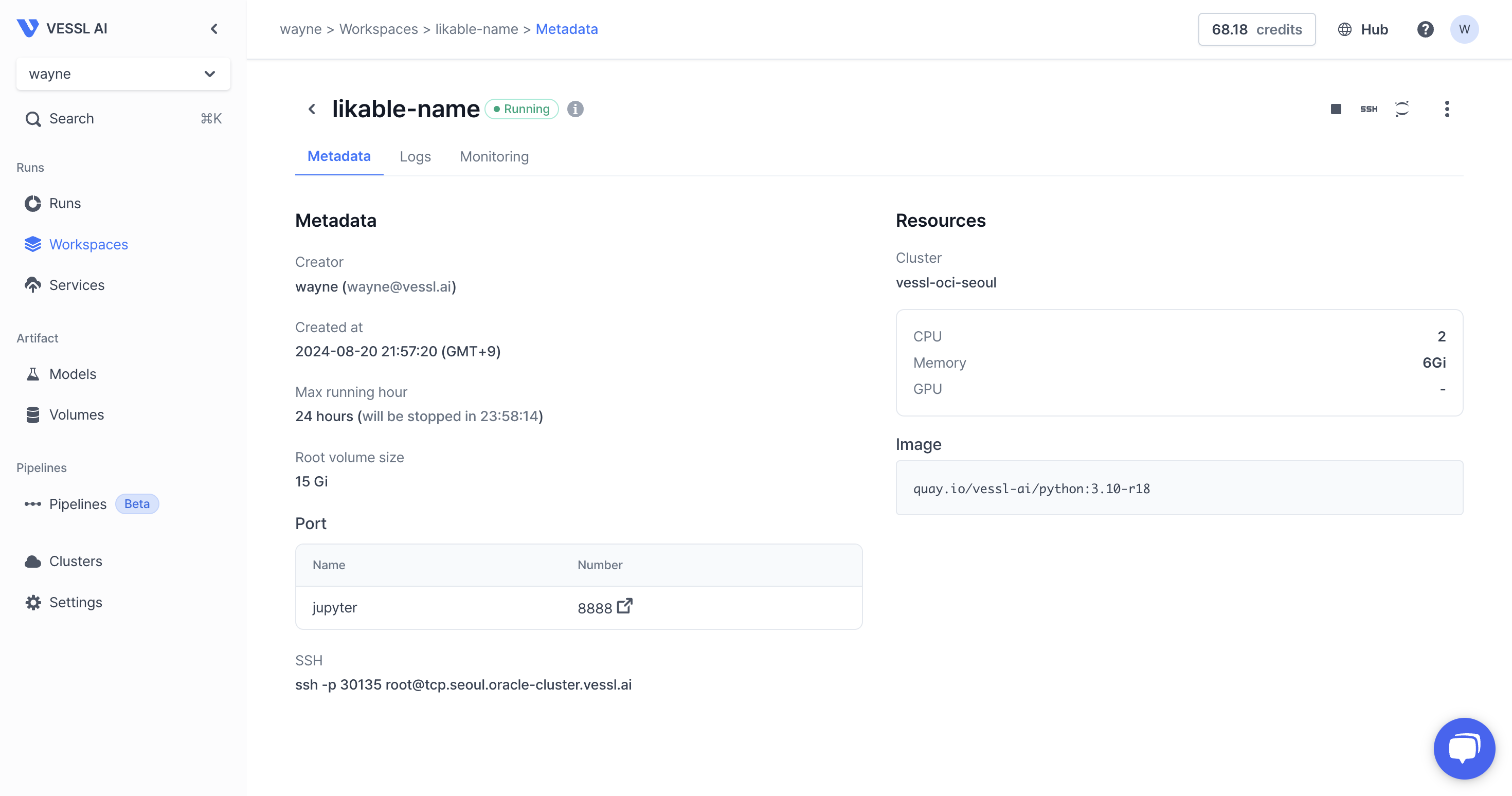
The Metadata section helps you to find the workspace configuration such as resource usage and mounted images.
 # Logs
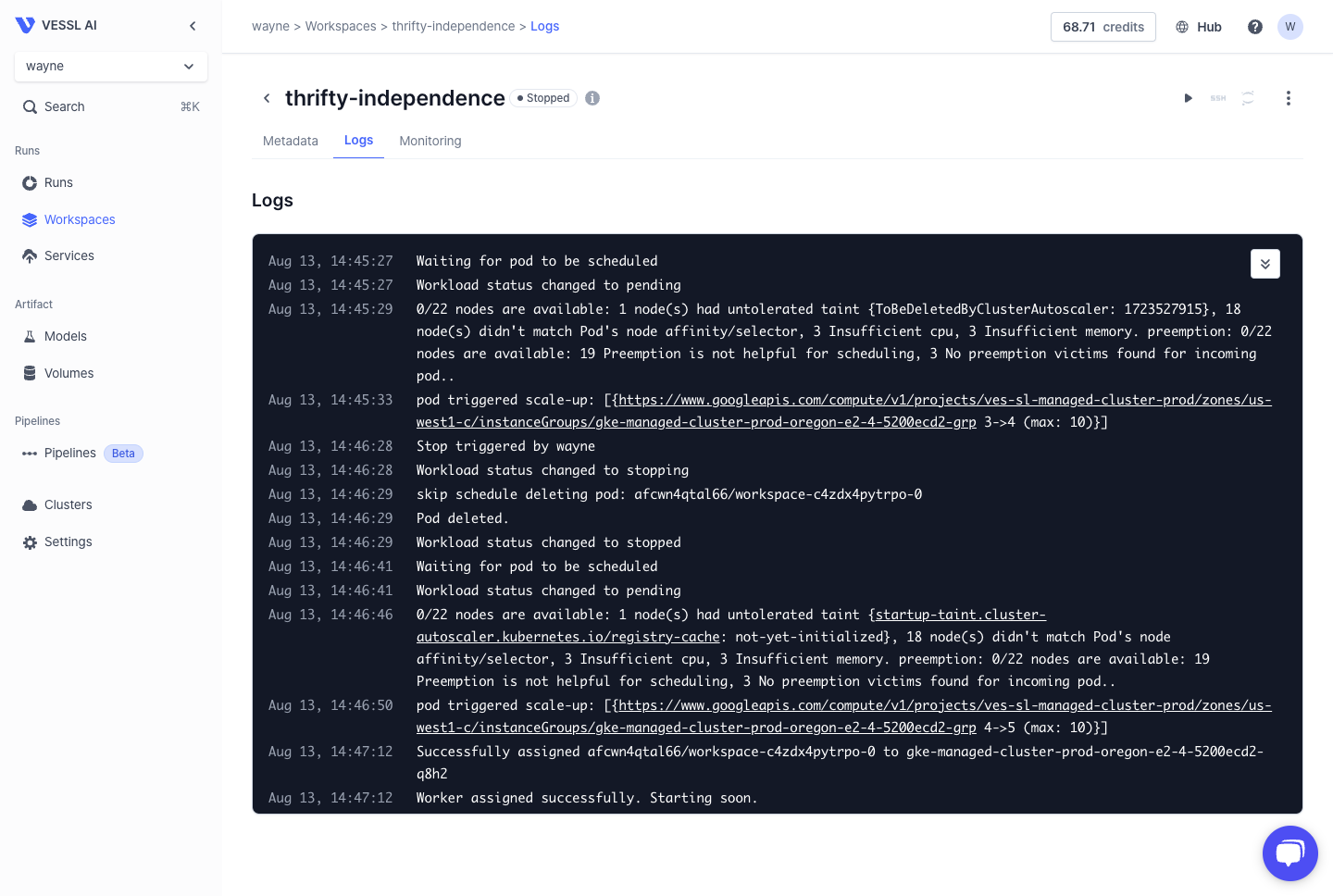
The Logs section enables monitor the workspace container logs. When you create a workspace, a Docker specific to the workspace is created.
# Logs
The Logs section enables monitor the workspace container logs. When you create a workspace, a Docker specific to the workspace is created.
 * **Timestamp**\
Each log entry is prefixed with a timestamp indicating when the event occurred. This helps in tracking the chronological order of events.
* **Workload Status**\
Displays the current status of the workload, such as "pending," "initializing," "running," and "stopping." These statuses provide insights into the lifecycle of the workload.
* **Container Management**
* **Assignment:** Shows the node or resource to which the workload has been assigned. Example: `afcwn4qtal66/workspace-858ri8oukgmj-0` was assigned to `10.191.91.189`.
* **Container Operations:** Logs the creation, starting, and stopping of containers. For example:
* `Created container workspace`
* `Started container fluentbit`
* `Stopping container fluentbit`
These logs help users understand resource allocation and the container lifecycle.
* **Resource Utilization**
* **Image Pulling:** Logs the pulling of images, including whether the image was already present on the machine. Example: `Container image "quay.io/vessl-ai/python:3.10-r18" already present on machine`.
* **Volume Attachment:** Logs successful volume attachments, such as: `AttachVolume.Attach succeeded for volume "csi-52e2cfaf-ddf3-4ec5-aa18-965ece67ee78"`.
* **Package Installation**
* **Dependencies:** Records the installation of Python packages and any warnings or errors encountered, useful for debugging dependency issues. Example:
* `CryptographyDeprecationWarning: TripleDES has been moved to cryptography.hazmat.decrepit.ciphers.algorithms.TripleDES and will be removed from this module in 48.0.0.`
* **CLI Tools:** Logs the installation and version of command-line tools, like VESSL CLI. Example:
* `Installing VESSL CLI...`
* `vessl, version 0.1.173`
* **Execution and Termination**
* **Process Execution:** Logs the execution of key processes or commands. Example: `JupyterLab is running`.
* **Termination Requests:** Indicates when a workload has been requested to terminate and logs the stopping of containers, providing insight into how and when processes are being concluded. Example:
* `Stop triggered by wayne`
* `Workload status changed to stopping`
* `Stopping container fluentbit`
* `Stopping container workspace`
# Monitoring
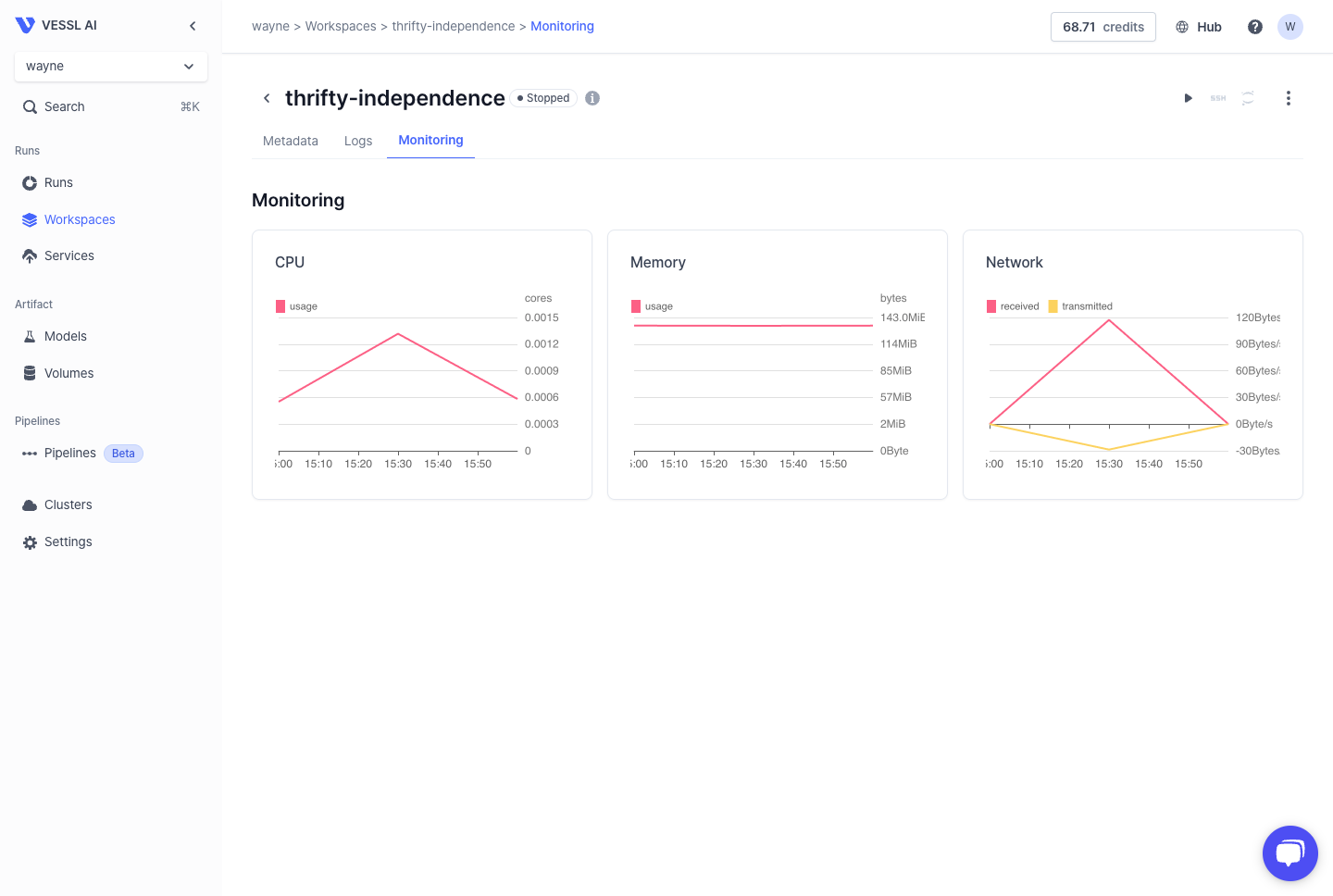
The Monitoring section enables monitor system metrics such as usage and limit for CPU, GPU, memory, and disk.
* **Timestamp**\
Each log entry is prefixed with a timestamp indicating when the event occurred. This helps in tracking the chronological order of events.
* **Workload Status**\
Displays the current status of the workload, such as "pending," "initializing," "running," and "stopping." These statuses provide insights into the lifecycle of the workload.
* **Container Management**
* **Assignment:** Shows the node or resource to which the workload has been assigned. Example: `afcwn4qtal66/workspace-858ri8oukgmj-0` was assigned to `10.191.91.189`.
* **Container Operations:** Logs the creation, starting, and stopping of containers. For example:
* `Created container workspace`
* `Started container fluentbit`
* `Stopping container fluentbit`
These logs help users understand resource allocation and the container lifecycle.
* **Resource Utilization**
* **Image Pulling:** Logs the pulling of images, including whether the image was already present on the machine. Example: `Container image "quay.io/vessl-ai/python:3.10-r18" already present on machine`.
* **Volume Attachment:** Logs successful volume attachments, such as: `AttachVolume.Attach succeeded for volume "csi-52e2cfaf-ddf3-4ec5-aa18-965ece67ee78"`.
* **Package Installation**
* **Dependencies:** Records the installation of Python packages and any warnings or errors encountered, useful for debugging dependency issues. Example:
* `CryptographyDeprecationWarning: TripleDES has been moved to cryptography.hazmat.decrepit.ciphers.algorithms.TripleDES and will be removed from this module in 48.0.0.`
* **CLI Tools:** Logs the installation and version of command-line tools, like VESSL CLI. Example:
* `Installing VESSL CLI...`
* `vessl, version 0.1.173`
* **Execution and Termination**
* **Process Execution:** Logs the execution of key processes or commands. Example: `JupyterLab is running`.
* **Termination Requests:** Indicates when a workload has been requested to terminate and logs the stopping of containers, providing insight into how and when processes are being concluded. Example:
* `Stop triggered by wayne`
* `Workload status changed to stopping`
* `Stopping container fluentbit`
* `Stopping container workspace`
# Monitoring
The Monitoring section enables monitor system metrics such as usage and limit for CPU, GPU, memory, and disk.