> ## Documentation Index
> Fetch the complete documentation index at: https://docs.vessl.ai/llms.txt
> Use this file to discover all available pages before exploring further.
# Access datasets in workspaces
There are several ways to access datasets in your workspace. The recommended approach is to use volume integration for seamless data access.
## Import datasets with volumes (Recommended)
The most convenient way to access datasets is by importing them as volumes when creating your workspace. This automatically makes your datasets available at startup without manual downloads.
### During workspace creation
1. In the workspace creation form, navigate to the **Volumes** section
2. Click **Add Volume** and select **Import**
3. Choose **Dataset** as the source type
4. Select your dataset from the dropdown
5. Specify the target path (e.g., `/data/my-dataset`)
Your dataset will be automatically available at the specified path when your workspace starts.
### Using VESSL CLI
You can also specify dataset imports when creating workspaces via CLI:
```bash theme={null}
# Import a single dataset
vessl workspace create \
--name "my-workspace" \
--import "/data/training:vessl-dataset://my-org/training-data"
# Import multiple datasets
vessl workspace create \
--name "my-workspace" \
--import "/data/train:vessl-dataset://my-org/training-data" \
--import "/data/val:vessl-dataset://my-org/validation-data"
```
### Benefits of volume import
* **Automatic setup**: Datasets are ready when your workspace starts
* **No manual downloads**: Eliminates the need for CLI download commands
* **Consistent paths**: Same dataset location across workspace restarts
* **Better organization**: Separate datasets into organized directory structures
## Mount datasets for real-time access
For large datasets or those that are frequently updated, consider mounting them instead of importing:
```bash theme={null}
# Mount a dataset for real-time access
vessl workspace create \
--name "my-workspace" \
--mount "/data/shared:vessl-dataset://my-org/shared-dataset"
```
Mounted datasets provide real-time access without consuming workspace disk space.
## Alternative methods
### Download datasets with CLI
Files downloaded outside the home directory `/root` are deleted when you restart the workspace.
You can manually download datasets to your local disk using VESSL CLI:
```bash theme={null}
vessl dataset download my-org/my-dataset --output /root/datasets/
```
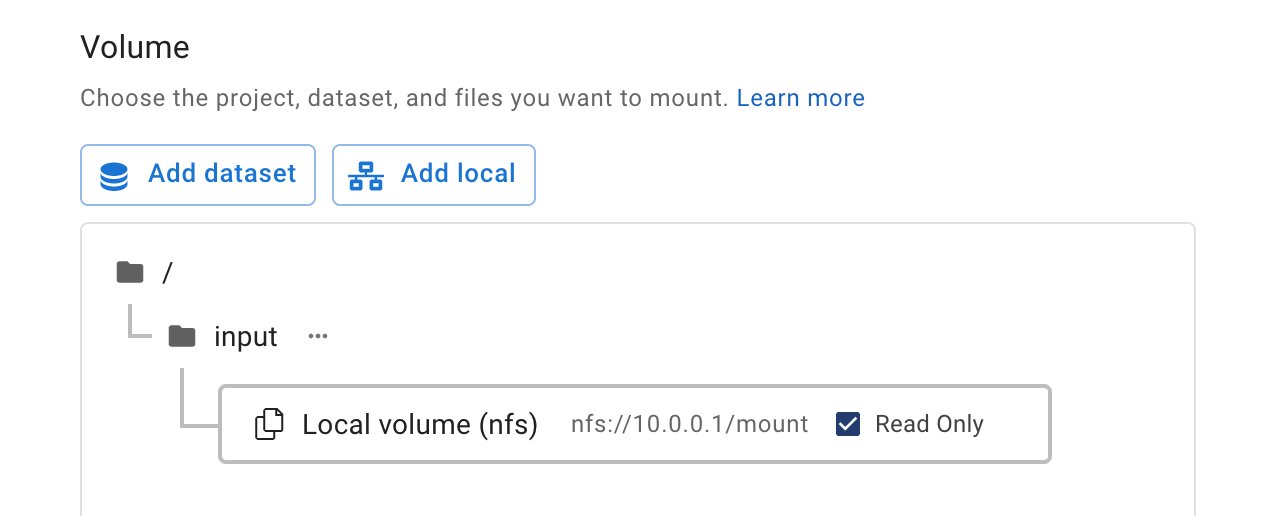
 ### Attach datasets (custom cluster only)
For custom clusters, you can attach NFS/Host machine volumes when creating or editing your workspace.
### Attach datasets (custom cluster only)
For custom clusters, you can attach NFS/Host machine volumes when creating or editing your workspace.
 ## Best practices
* **Use volume imports** for most use cases - they provide the best user experience
* **Mount large datasets** that exceed your workspace disk capacity
* **Organize datasets** in logical directory structures (e.g., `/data/training`, `/data/validation`)
* **Store processed data** in `/root` for persistence across workspace sessions
Explore the complete guide to using volumes in workspaces for advanced data management.
## Best practices
* **Use volume imports** for most use cases - they provide the best user experience
* **Mount large datasets** that exceed your workspace disk capacity
* **Organize datasets** in logical directory structures (e.g., `/data/training`, `/data/validation`)
* **Store processed data** in `/root` for persistence across workspace sessions
Explore the complete guide to using volumes in workspaces for advanced data management.