> ## Documentation Index
> Fetch the complete documentation index at: https://docs.vessl.ai/llms.txt
> Use this file to discover all available pages before exploring further.
# VESSL Storage
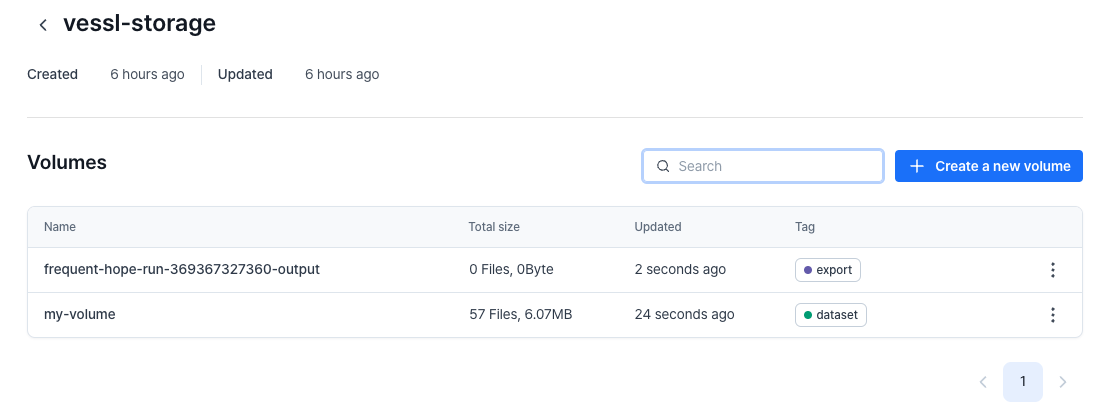
VESSL Storage is the default, fully managed storage system provided by the VESSL platform. It is automatically created for each organization and cannot be deleted, ensuring continuous availability for all projects.
## Creating a volume in VESSL Storage
Volume is the basic storage unit in VESSL. There are two ways to create a volume, each optimized for different machine learning workflow scenarios.
In YAML, a volume in VESSL Storage is specified as `volume://vessl-storage/{volume-name}`.
### 1. User-generated volume
Users can create volumes to upload datasets or models that will be used in workloads.
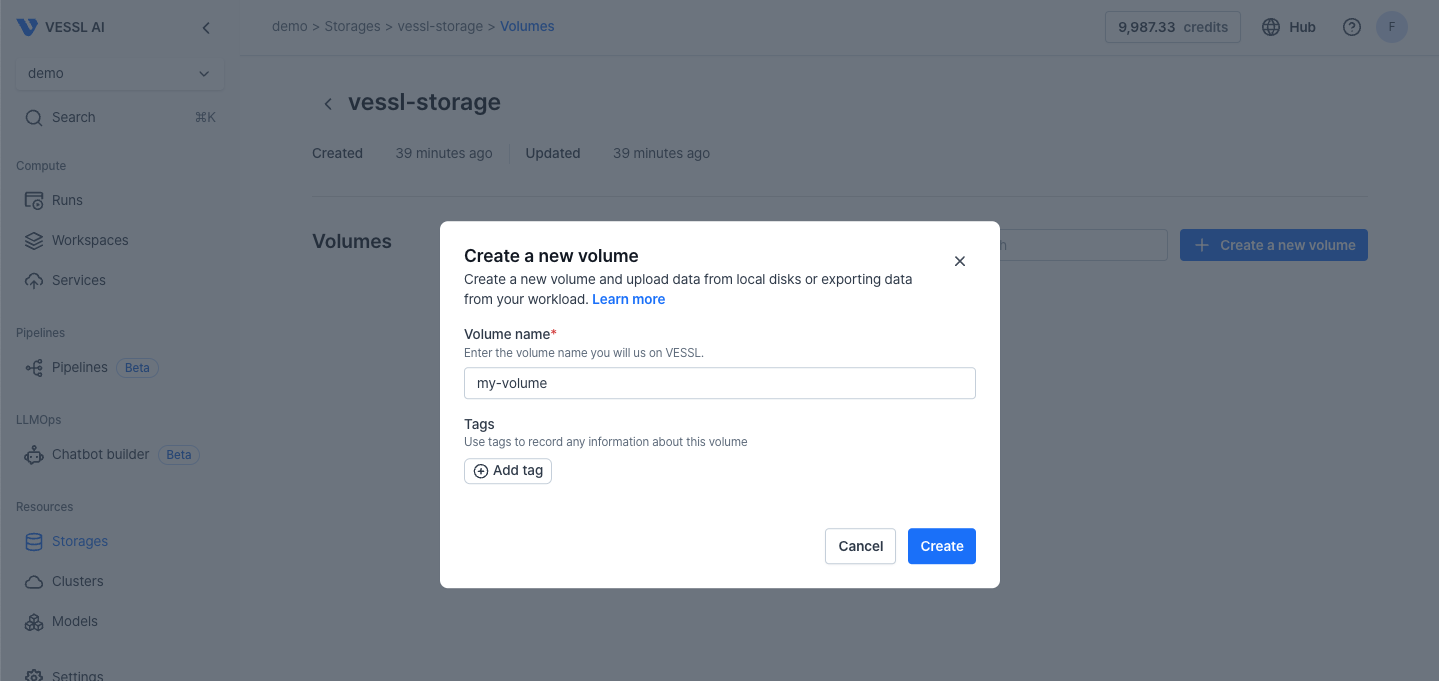
Navigate to **Storage > VESSL Storage** and click the `+ Create a new volume` button. Specify the volume name and click the `Create` button.
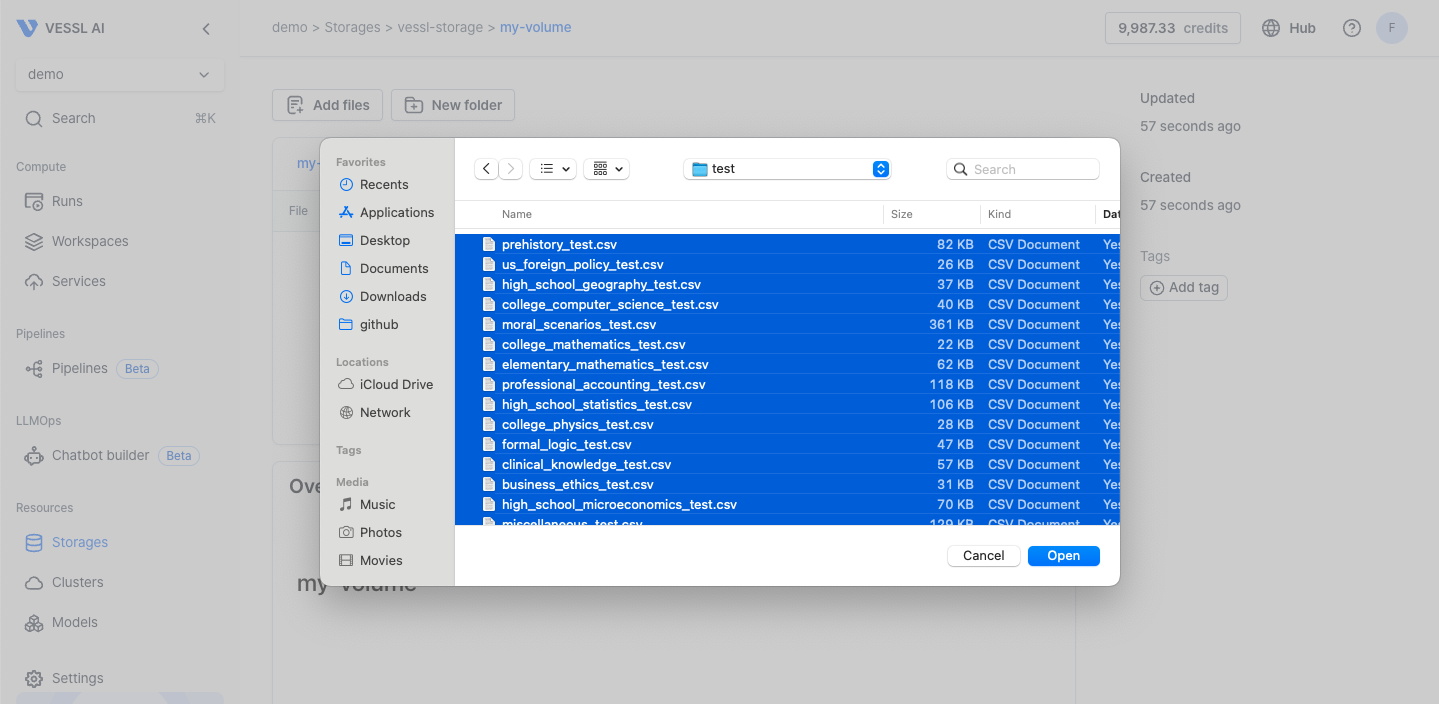
 Click the `Add files` button in the volume and select the files in your local machine to upload.
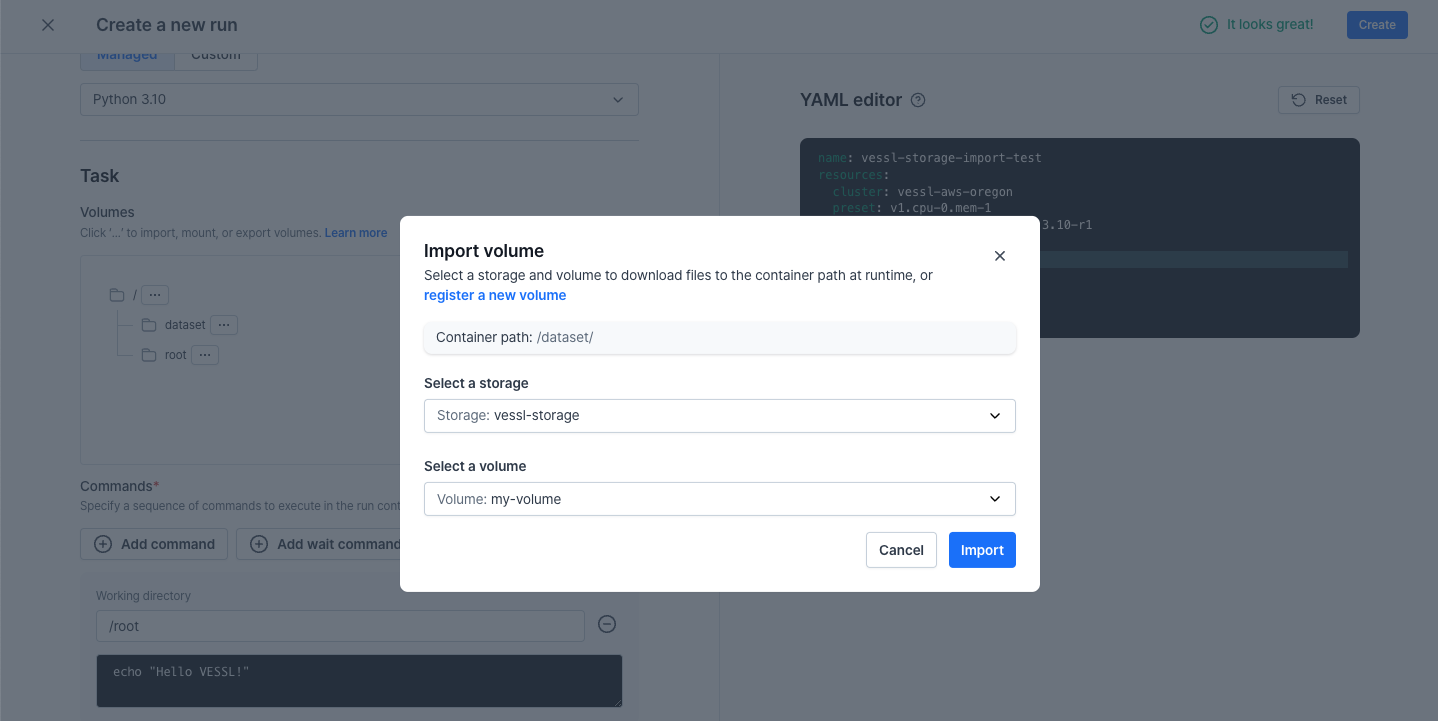
 When creating a run in the web console, create a new directory (e.g., `/dataset`), and import the volume of VESSL Storage as shown below.
 Alternatively, you can manually specify the volume in YAML editor as follows:
```yaml theme={null}
import:
/dataset: volume://vessl-storage/my-volume
```
### 2. Workload-generated volume
Volumes can also be created by a workload when exporting logs, checkpoints, and metrics to VESSL Storage. The volume name is automatically generated in this case.
To export your workload's data to VESSL Storage, create a new directory (e.g., `/output`), and export to VESSL Storage as follows.
Alternatively, you can manually specify the volume in YAML editor as follows:
```yaml theme={null}
import:
/dataset: volume://vessl-storage/my-volume
```
### 2. Workload-generated volume
Volumes can also be created by a workload when exporting logs, checkpoints, and metrics to VESSL Storage. The volume name is automatically generated in this case.
To export your workload's data to VESSL Storage, create a new directory (e.g., `/output`), and export to VESSL Storage as follows.
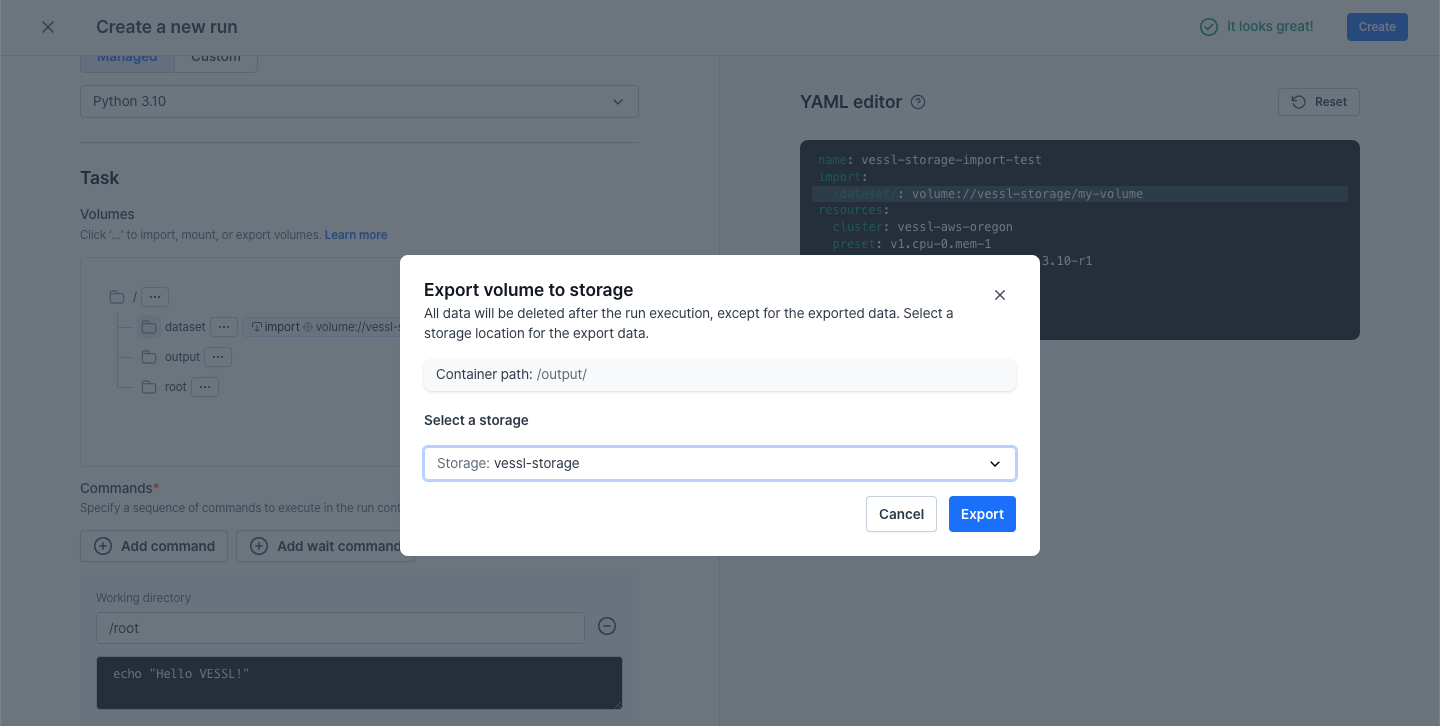 Alternatively, you can manually specify the export in the YAML editor as follows.
```yaml theme={null}
export:
/output: volume://vessl-storage/
```
Navigate to **Run > Files** to find the file tree of run execution.
Alternatively, you can manually specify the export in the YAML editor as follows.
```yaml theme={null}
export:
/output: volume://vessl-storage/
```
Navigate to **Run > Files** to find the file tree of run execution.
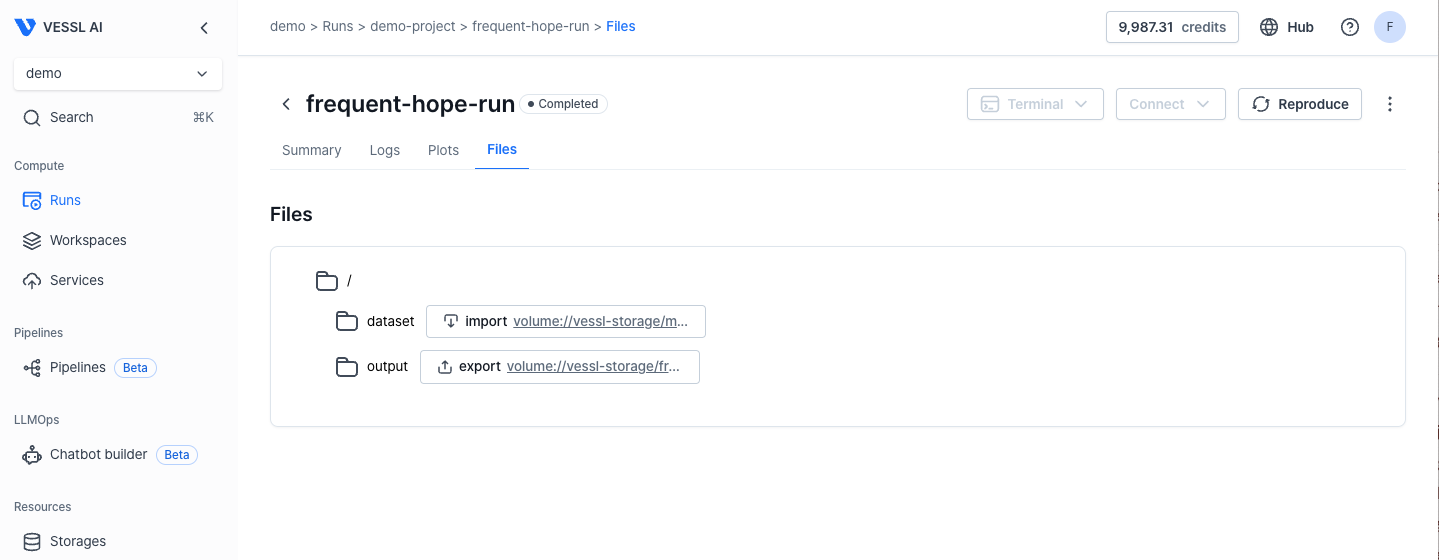 Follow the export volume link to access the volume in the VESSL Storage.
## Tagging & Search
Whether your volume is user-generated or workload-generated, tagging allows for quick search and retrieval of data.
Follow the export volume link to access the volume in the VESSL Storage.
## Tagging & Search
Whether your volume is user-generated or workload-generated, tagging allows for quick search and retrieval of data.