> ## Documentation Index
> Fetch the complete documentation index at: https://docs.vessl.ai/llms.txt
> Use this file to discover all available pages before exploring further.
# External Storage
For users who prefer full control over their data or have existing storage infrastructures, External Storage provides the flexibility to integrate cloud or on-premises storage solutions directly into the VESSL platform. This allows users to connect their preferred storage without migrating data into VESSL.
## Integrate External Storage
In YAML, external storage volumes are specified as `volume://{storage-name}/{volume-name}`.
### 1. Cloud object storage
VESSL supports AWS S3 and Google Cloud Storage as external cloud storage options. Follow the steps below to integrate cloud storage:
Integrating AWS S3 or Google Cloud Storage is straightforward. Navigate to **Organization settings > Integrations** and add your credentials.
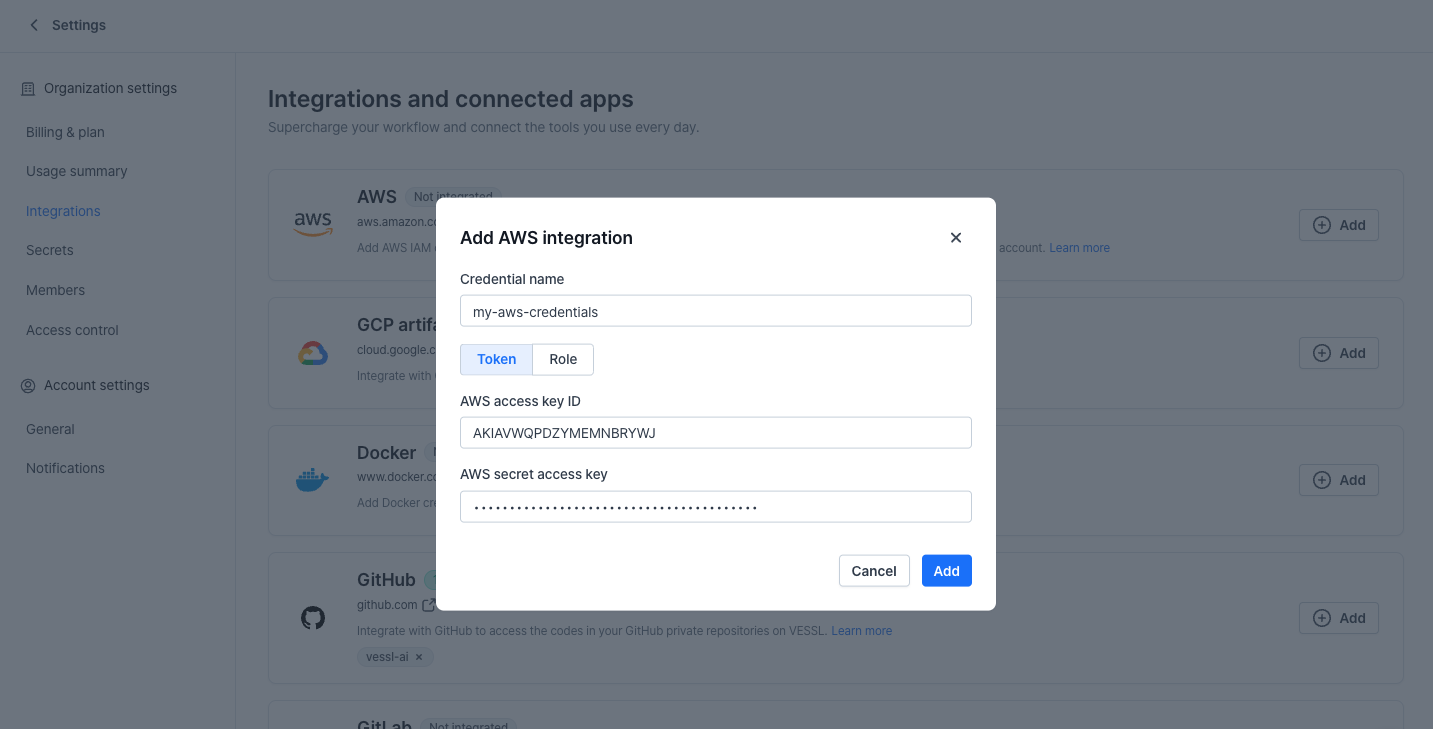 * [How to integrate AWS credentials](https://docs.vessl.ai/guides/organization/integrations#aws-credentials)
* [How to integrate GCP credentials](https://docs.vessl.ai/guides/organization/integrations#gcp)
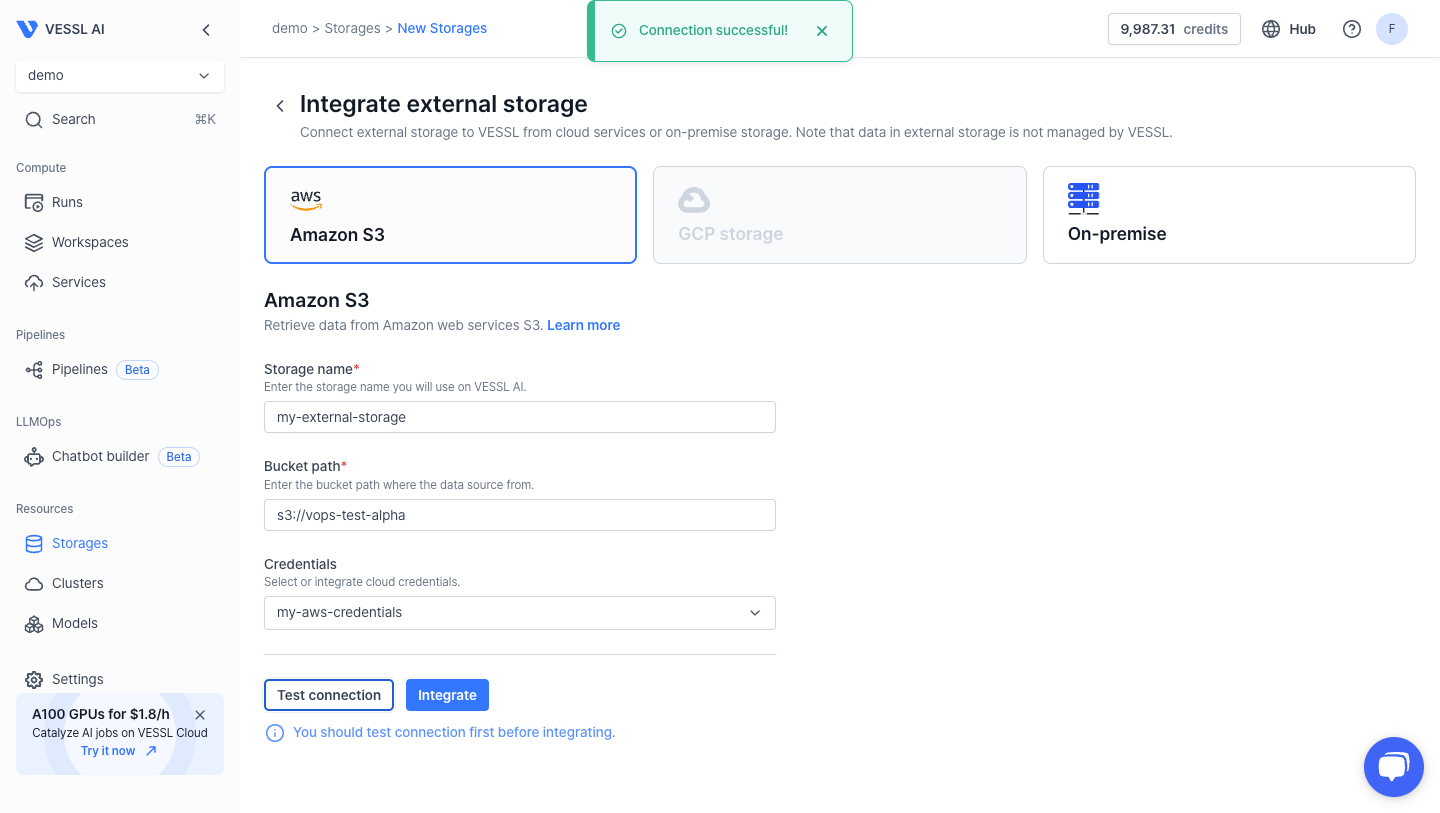
After adding credentials, integrate your external storage using the bucket path. Click `Test connection` to validate the credentials, and then click `Integrate`.
* [How to integrate AWS credentials](https://docs.vessl.ai/guides/organization/integrations#aws-credentials)
* [How to integrate GCP credentials](https://docs.vessl.ai/guides/organization/integrations#gcp)
After adding credentials, integrate your external storage using the bucket path. Click `Test connection` to validate the credentials, and then click `Integrate`.
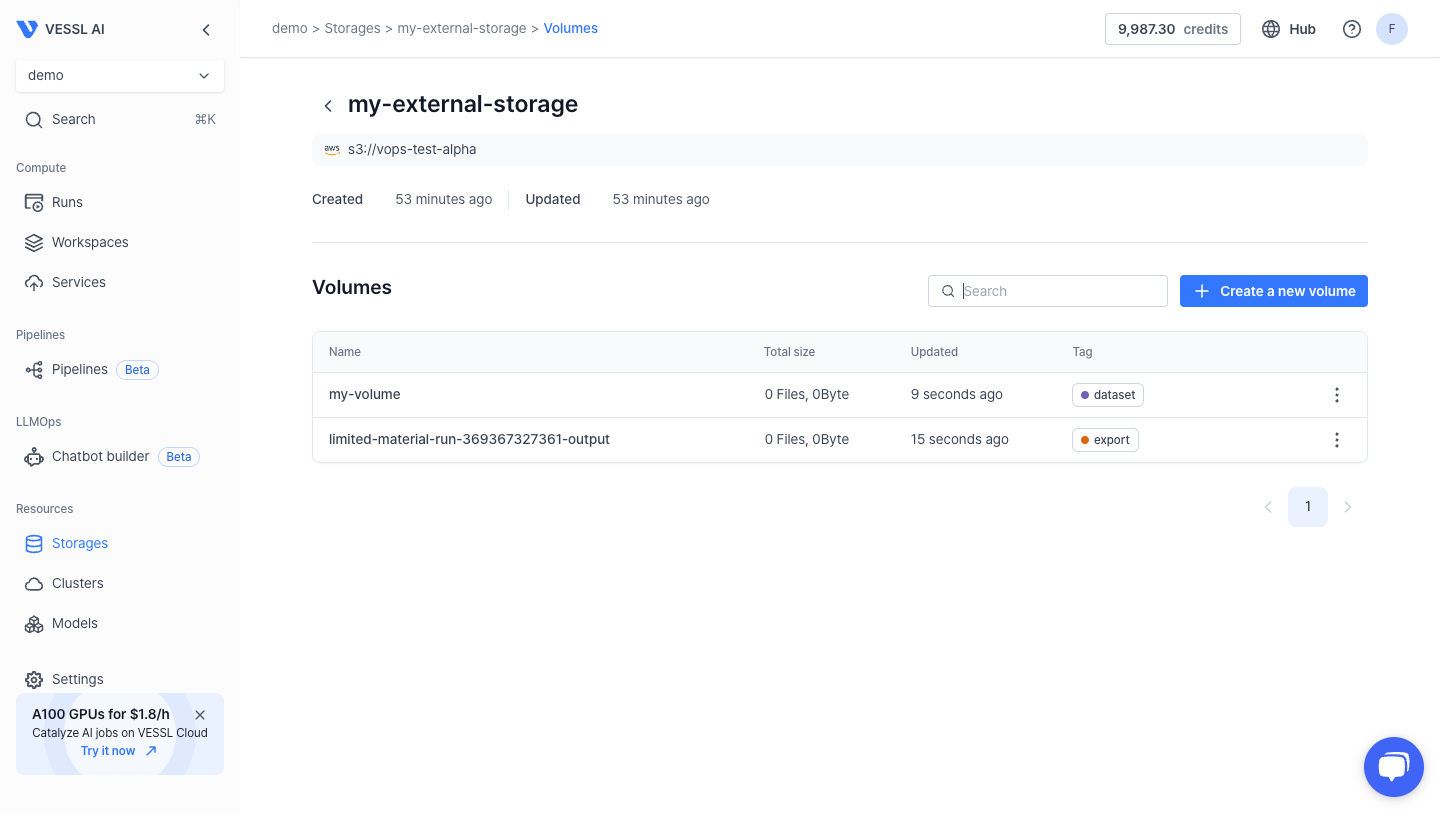
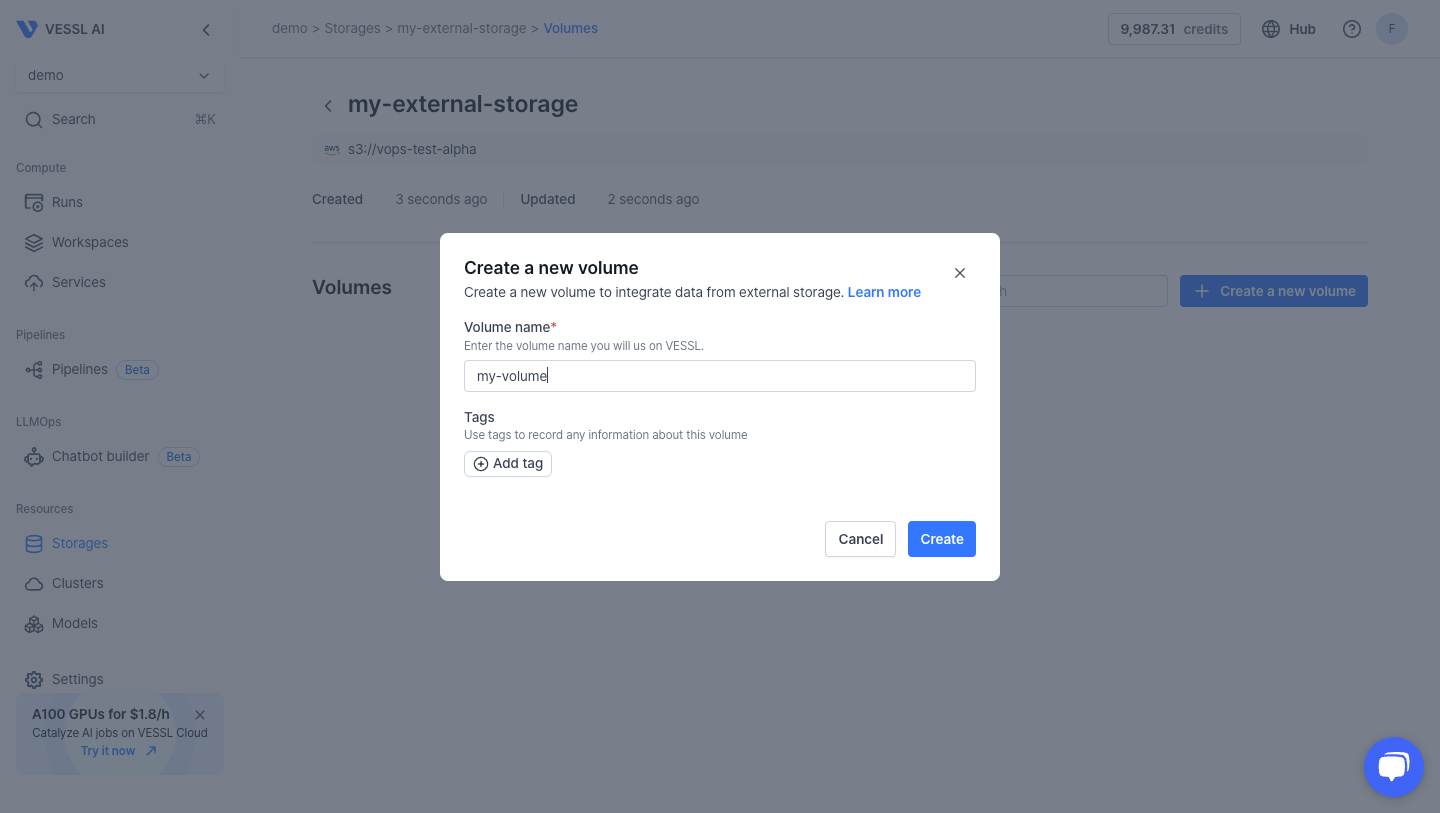
 Create a volume in the external storage for use in workloads.
You cannot create files or folders directly in External Storage volumes. These must be managed at the source.
Create a volume in the external storage for use in workloads.
You cannot create files or folders directly in External Storage volumes. These must be managed at the source.
 When creating a run in the web console, create a directory (e.g., `/dataset`) and import the volume from External Storage as follows:
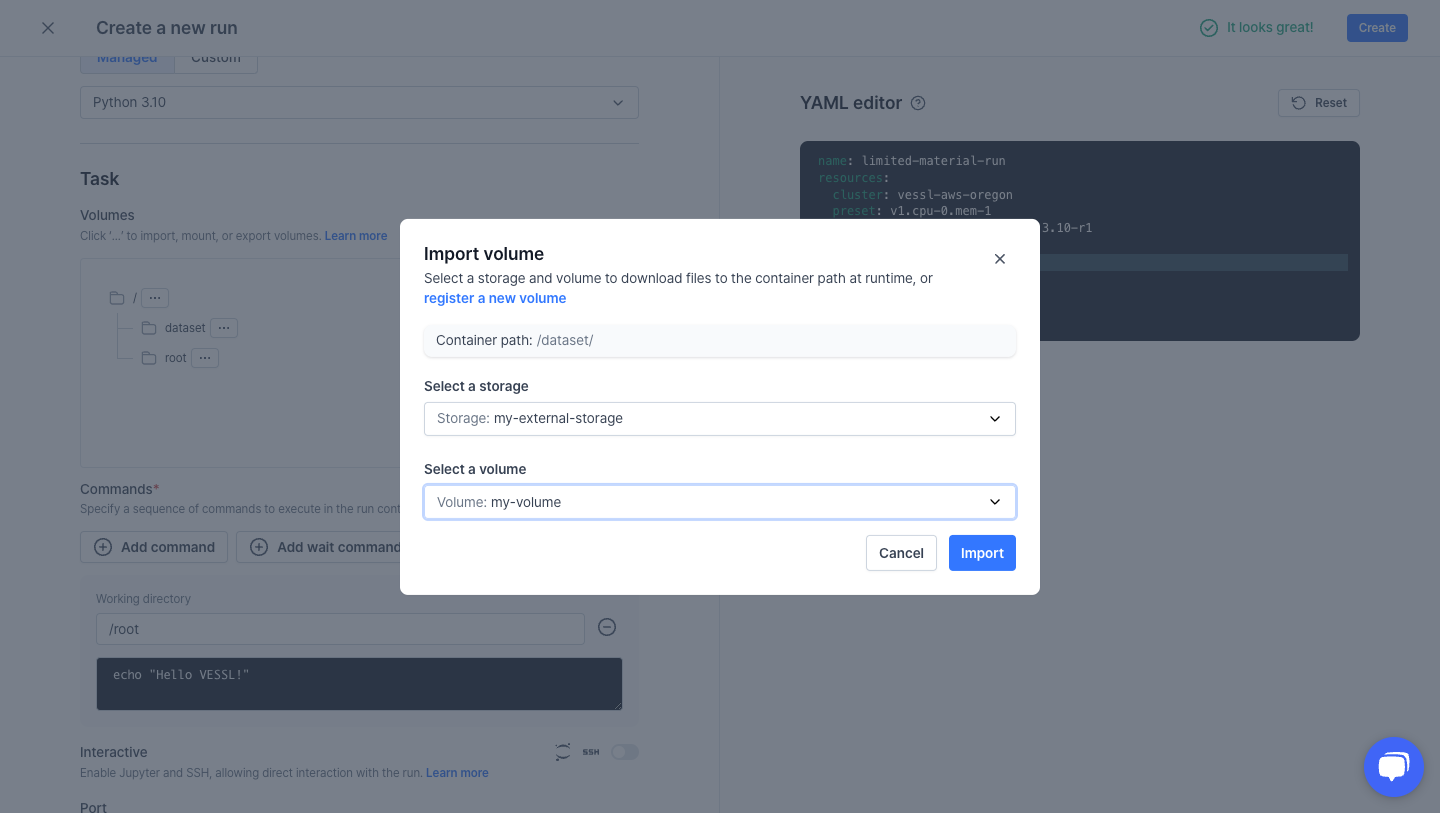 Alternatively, you can manually specify the volume in the YAML editor:
```yaml theme={null}
import:
/dataset: volume://{storage-name}/{volume-name}
```
To export your workload's data to External Storage, create a new directory (e.g., `/output`), and export the data as follows:
Alternatively, you can manually specify the volume in the YAML editor:
```yaml theme={null}
import:
/dataset: volume://{storage-name}/{volume-name}
```
To export your workload's data to External Storage, create a new directory (e.g., `/output`), and export the data as follows:
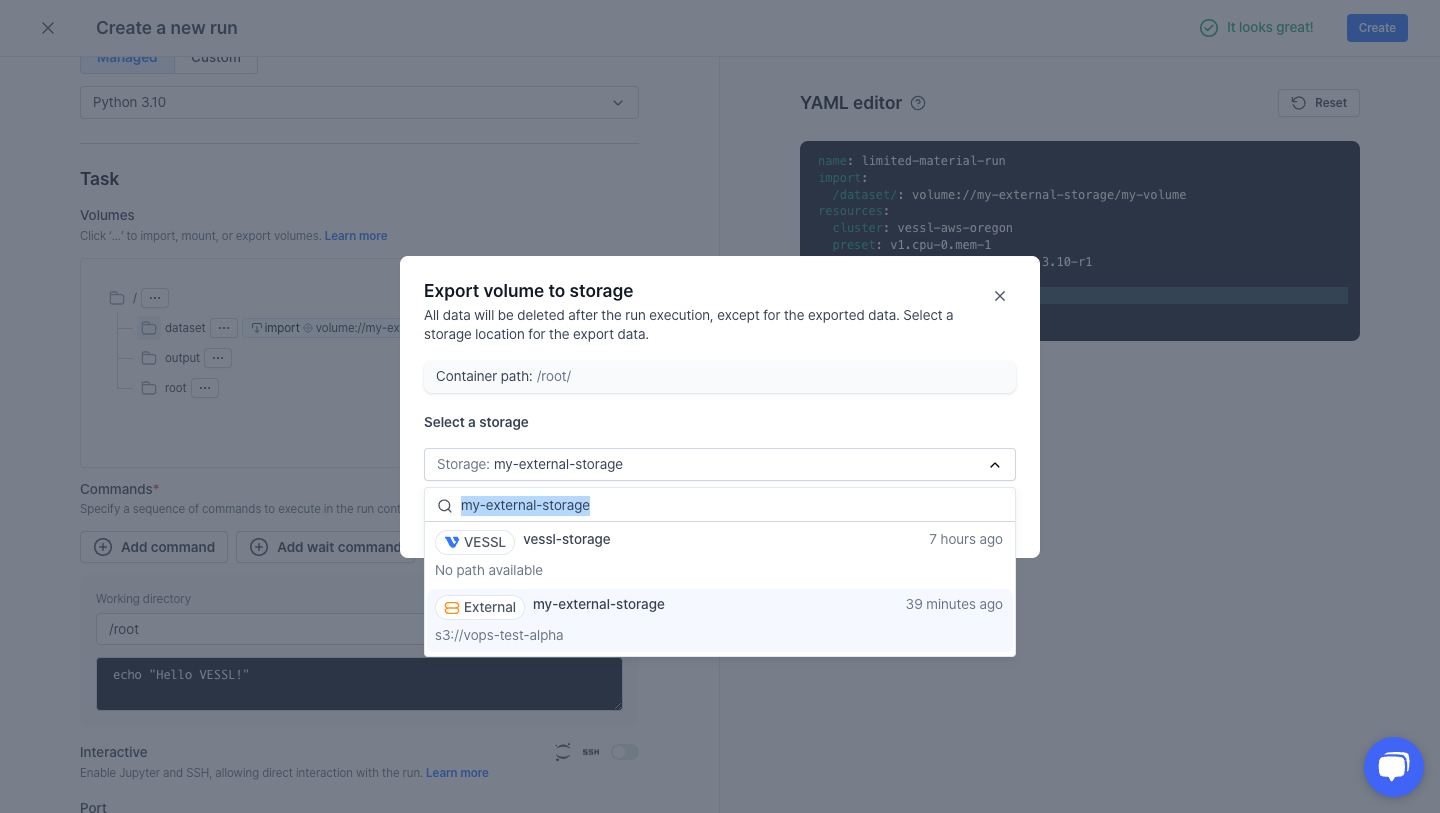 Alternatively, you can manually specify the export in the YAML editor:
```yaml theme={null}
export:
/output: volume://{storage-name}/
```
Navigate to **Run > Files** to find he file tree of the executed run.
Alternatively, you can manually specify the export in the YAML editor:
```yaml theme={null}
export:
/output: volume://{storage-name}/
```
Navigate to **Run > Files** to find he file tree of the executed run.
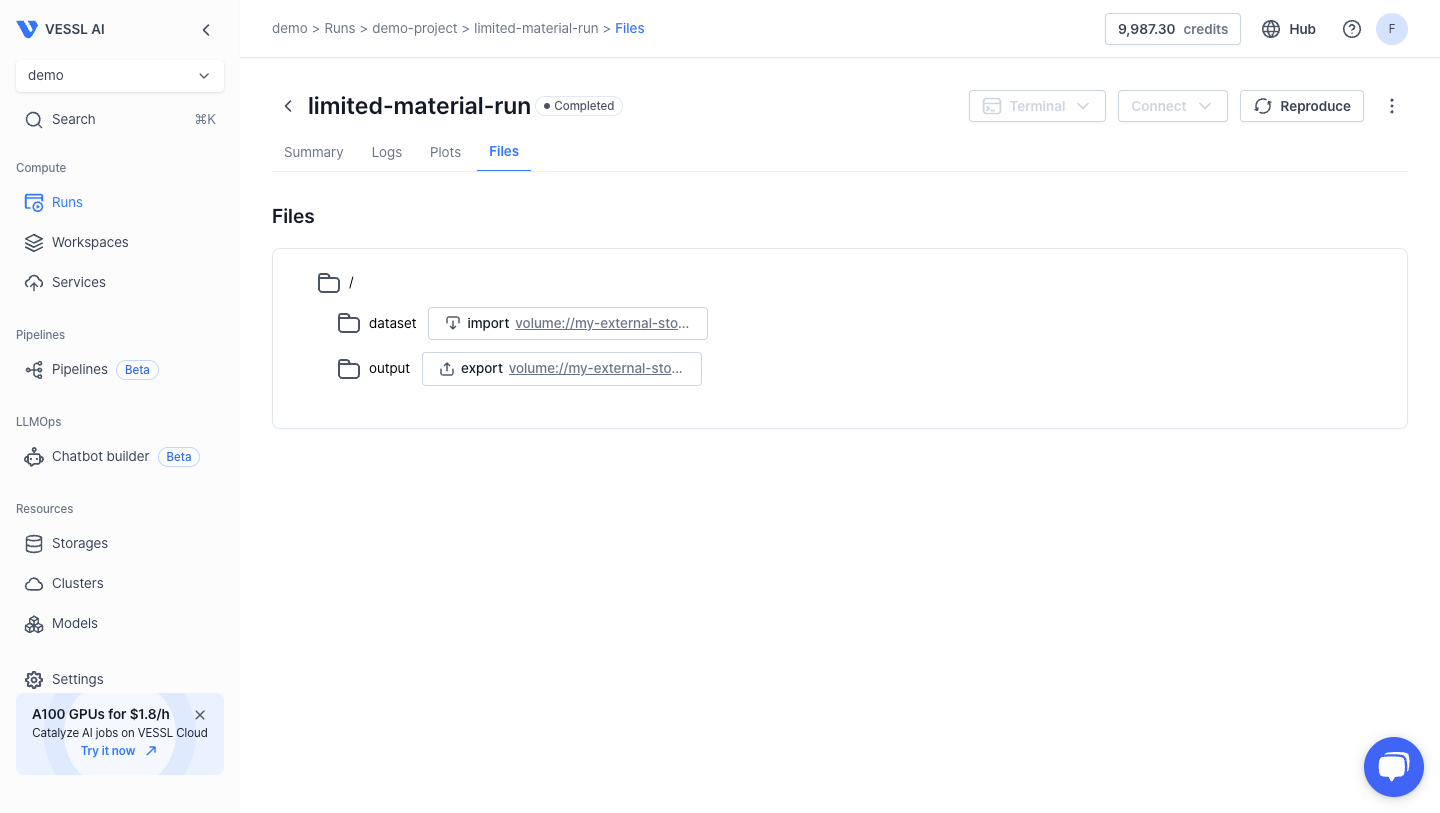 Follow the export volume link to access the data in External Storage.
### 2. On-Premises storage
VESSL supports NFS (Network File System) and host path volumes for users who maintain on-premises storage solutions. You can integrate and use data from on-premises storage by following these steps:
On-premises storage is bound to a specific cluster.
Integrate external storage with the NFS or host path options. Click the`Integrate` button.
Follow the export volume link to access the data in External Storage.
### 2. On-Premises storage
VESSL supports NFS (Network File System) and host path volumes for users who maintain on-premises storage solutions. You can integrate and use data from on-premises storage by following these steps:
On-premises storage is bound to a specific cluster.
Integrate external storage with the NFS or host path options. Click the`Integrate` button.
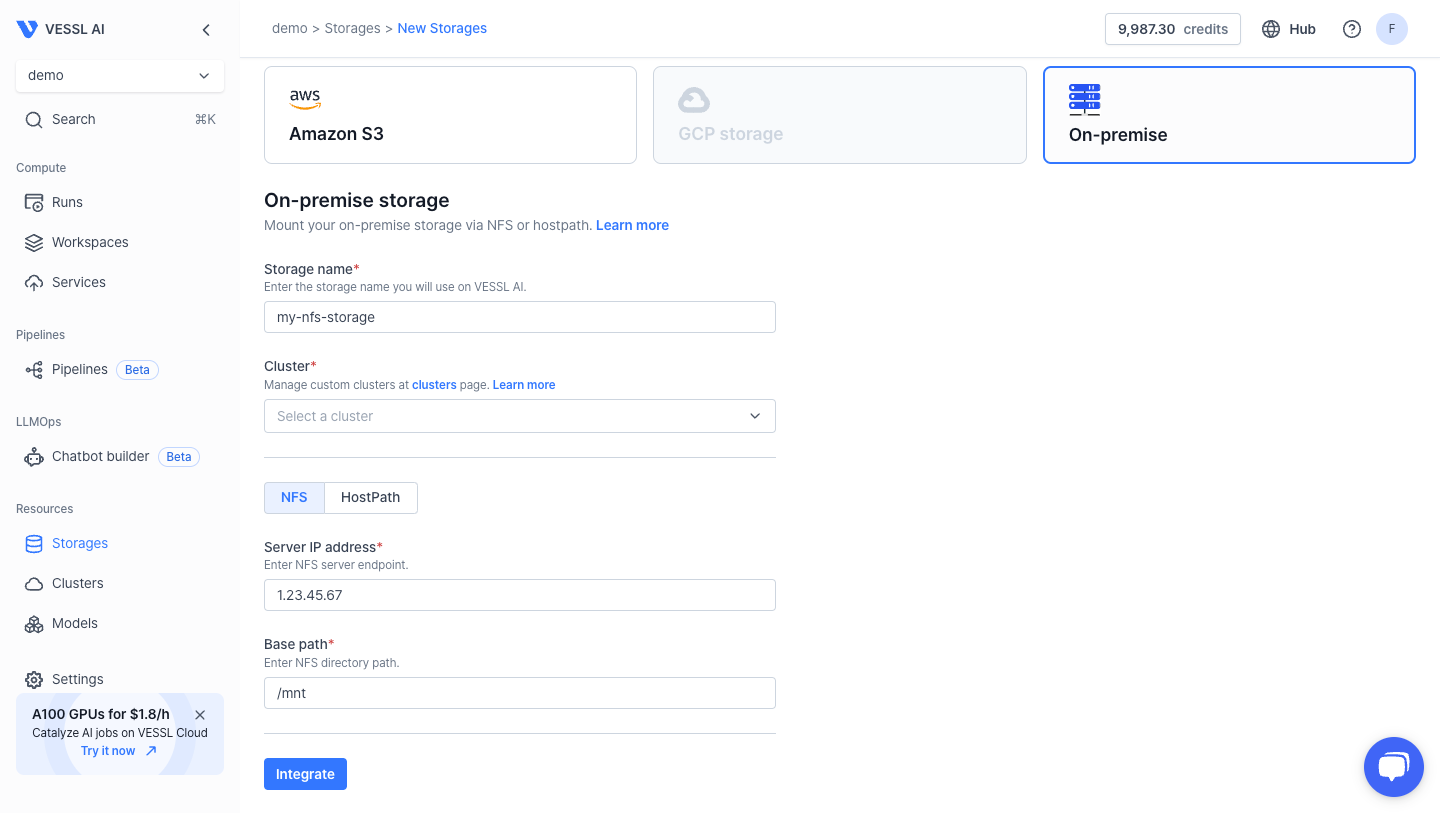 NFS volumes can be directly mounted to runs, reducing initialization time and making it ideal for large datasets.
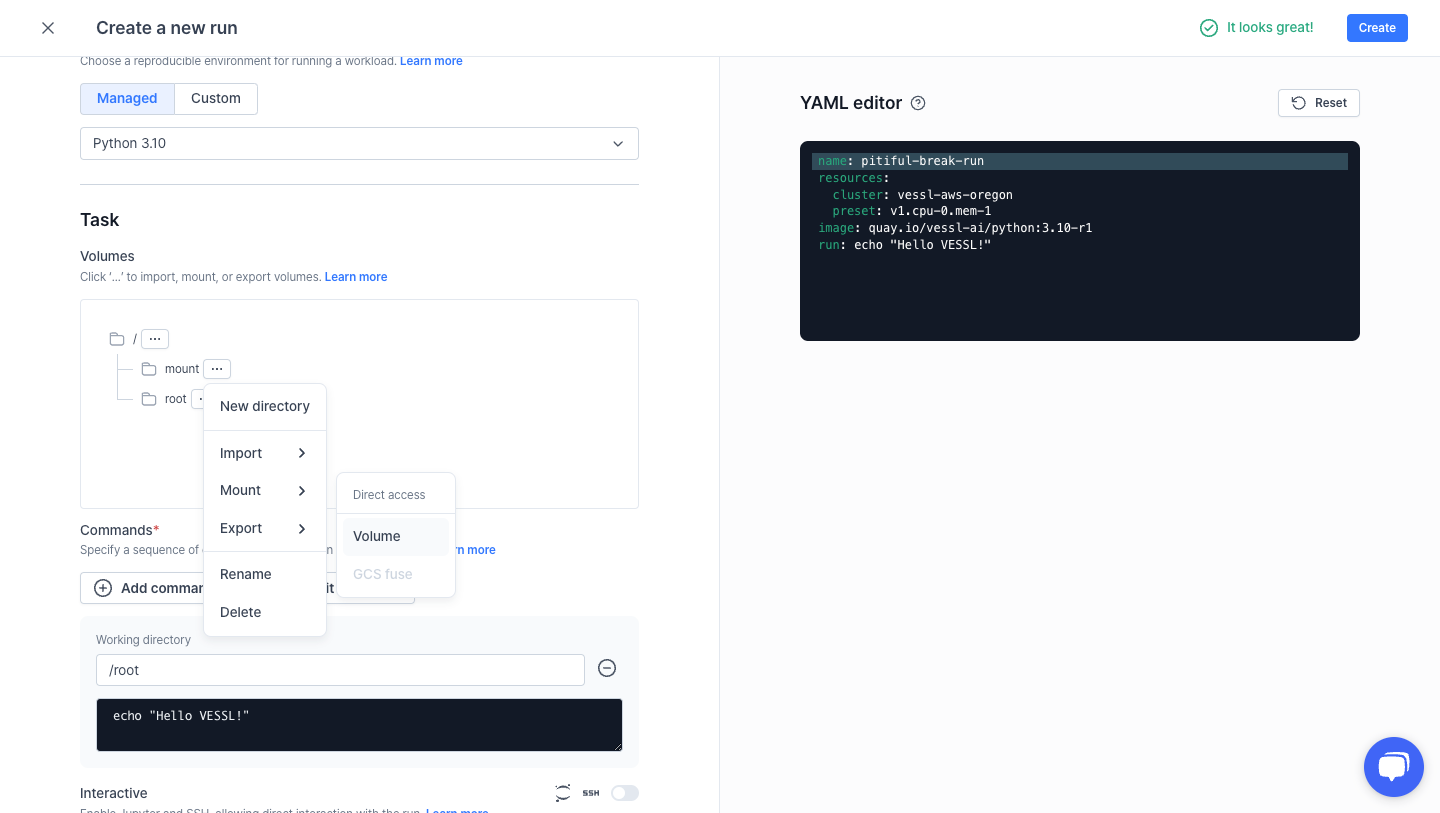 Alternatively, you can manually specify the mount in the YAML editor:
```yaml theme={null}
mount:
/mnt: volume://{storage-name}/{volume-name}
```
## Tagging & Search
Similar to VESSL Storage, you can tag external storage volumes for easy search and retrieval. Tags are supported across both cloud and on-premises storage, ensuring a consistent experience.
Alternatively, you can manually specify the mount in the YAML editor:
```yaml theme={null}
mount:
/mnt: volume://{storage-name}/{volume-name}
```
## Tagging & Search
Similar to VESSL Storage, you can tag external storage volumes for easy search and retrieval. Tags are supported across both cloud and on-premises storage, ensuring a consistent experience.