> ## Documentation Index
> Fetch the complete documentation index at: https://docs.vessl.ai/llms.txt
> Use this file to discover all available pages before exploring further.
# Add integrations
### Integrating your service to VESSL
You can integrate various services to VESSL using AWS, Docker, and SSH Keys. The integrated AWS and Docker credentials are used to manage private docker images, whereas the SSH Keys are used for authorized keys for SSH connection.
### AWS Credentials
#### Using access token
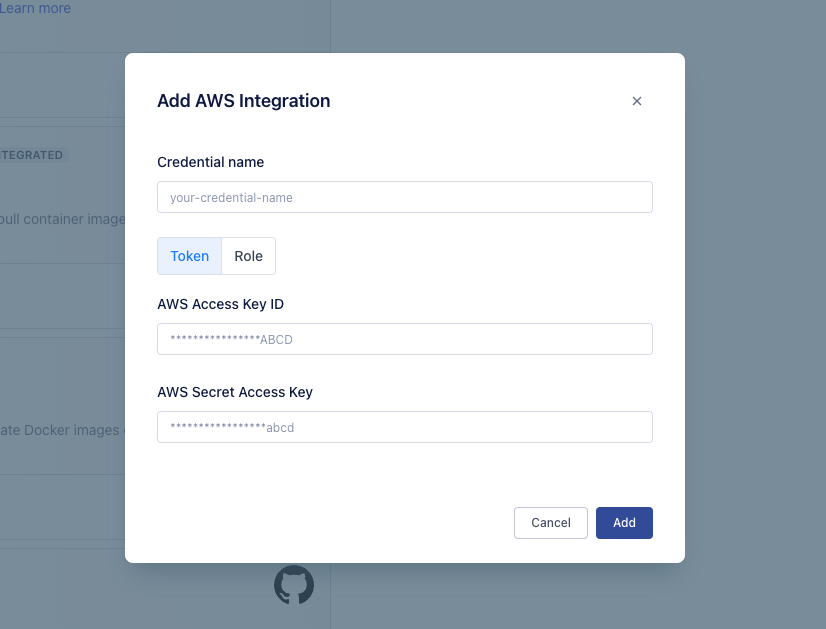
You can create access key token by following this [guide from AWS](https://docs.aws.amazon.com/IAM/latest/UserGuide/id_credentials_access-keys.html). Once you have your key, click **+ Add** button, select token and fill in the form.
For external storage feature, we recommend to add the following roles to your credentials.
```json Import volume theme={null}
{
"Version": "2012-10-17",
"Statement": {
"Effect": "Allow",
"Action": [
"s3:ListBucket",
"s3:GetObject"
],
"Resource": [
"arn:aws:s3:::{bucket name}",
"arn:aws:s3:::{bucket name}/*"
]
}
}
```
```json Export volume theme={null}
{
"Version": "2012-10-17",
"Statement": {
"Effect": "Allow",
"Action": [
"s3:ListBucket",
"s3:GetObject",
"s3:PutObject",
"s3:ListBucketMultipartUploads",
"s3:AbortMultipartUpload"
],
"Resource": [
"arn:aws:s3:::{bucket name}",
"arn:aws:s3:::{bucket name}/*"
]
}
}
```
```json Permissions CORS theme={null}
[
{
"AllowedHeaders": [
"*"
],
"AllowedMethods": [
"GET",
"POST",
"PUT",
"DELETE"
],
"AllowedOrigins": [
"https://app.vessl.ai"
],
"ExposeHeaders": []
}
]
```
 #### Using IAM role
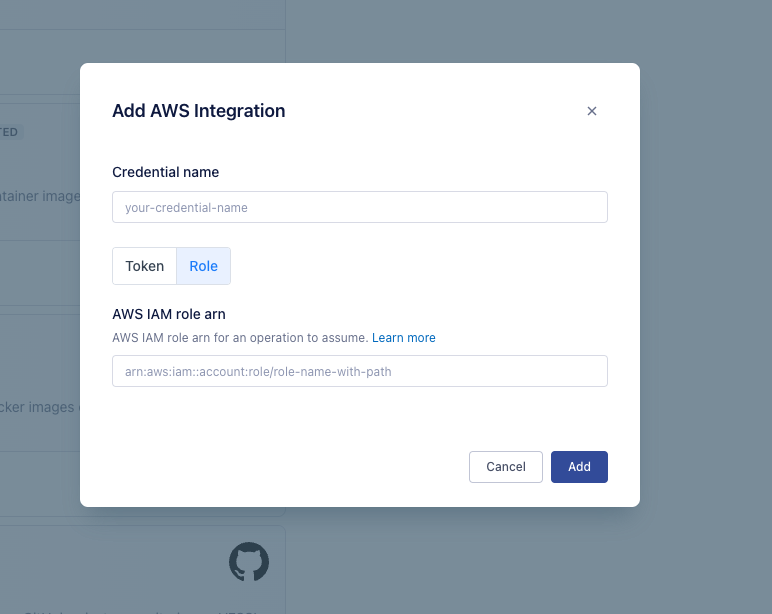
You can create an IAM role by following [guide from AWS](https://docs.aws.amazon.com/IAM/latest/UserGuide/id_roles_create_for-service.html). Select role and fill in the form.
#### Using IAM role
You can create an IAM role by following [guide from AWS](https://docs.aws.amazon.com/IAM/latest/UserGuide/id_roles_create_for-service.html). Select role and fill in the form.
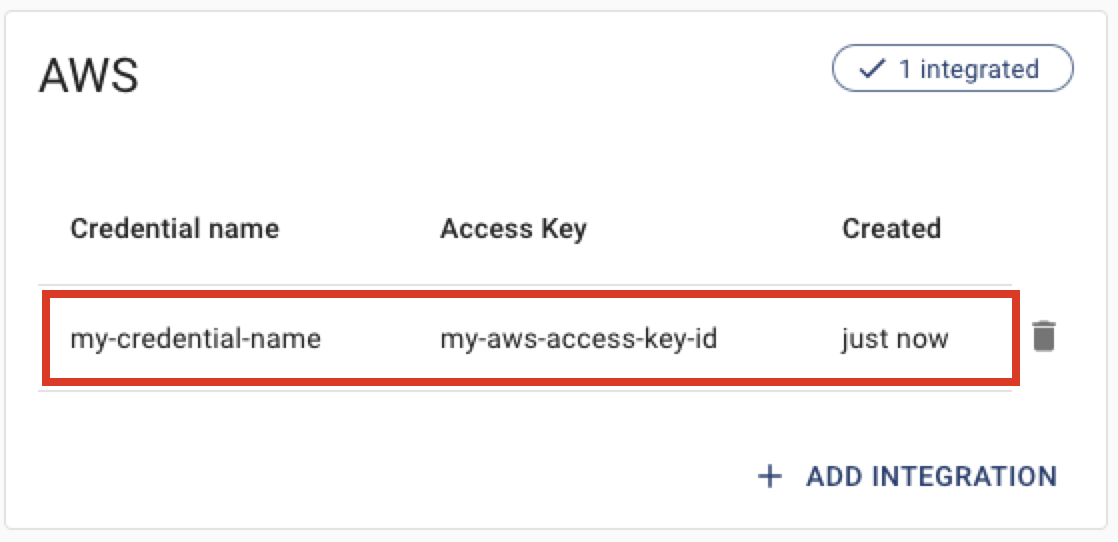
 You can integrate multiple AWS credentials into your organization. You can also revoke your credentials by simply clicking the trash button on the right.
 If you want to pull images from
[ECR](https://docs.aws.amazon.com/AmazonECR/latest/userguide/what-is-ecr.html)
, make sure to provide the [ECR pull policy granted
account.](https://docs.aws.amazon.com/AmazonECR/latest/userguide/repository-policy-examples.html)
### GCP
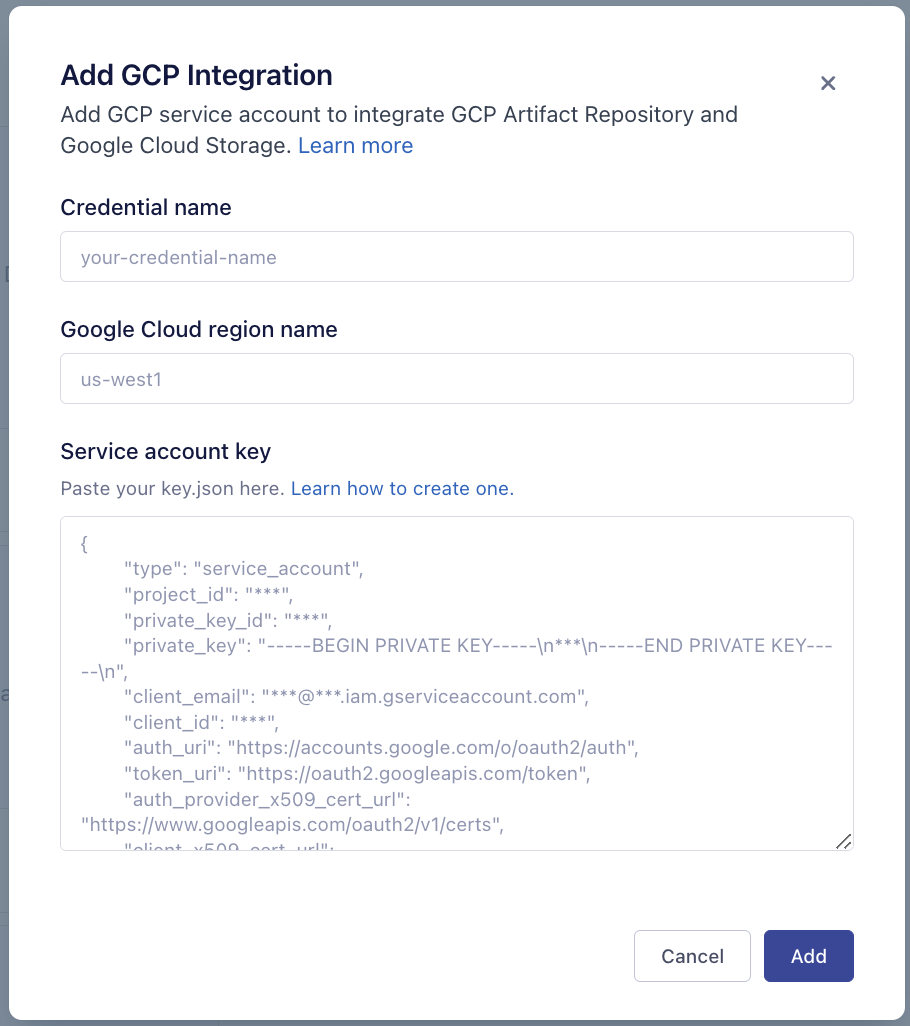
You can integrate your GCP Project by binding your Google Cloud IAM Service Account. Create service account by following the [guide from GCP](https://cloud.google.com/iam/docs/service-accounts-create#iam-service-accounts-create-gcloud) and get your key JSON by [another GCP guide](https://cloud.google.com/iam/docs/keys-list-get#get-key). Fill in the form with the values.
If you want to pull images from
[ECR](https://docs.aws.amazon.com/AmazonECR/latest/userguide/what-is-ecr.html)
, make sure to provide the [ECR pull policy granted
account.](https://docs.aws.amazon.com/AmazonECR/latest/userguide/repository-policy-examples.html)
### GCP
You can integrate your GCP Project by binding your Google Cloud IAM Service Account. Create service account by following the [guide from GCP](https://cloud.google.com/iam/docs/service-accounts-create#iam-service-accounts-create-gcloud) and get your key JSON by [another GCP guide](https://cloud.google.com/iam/docs/keys-list-get#get-key). Fill in the form with the values.
 ### Docker credentials
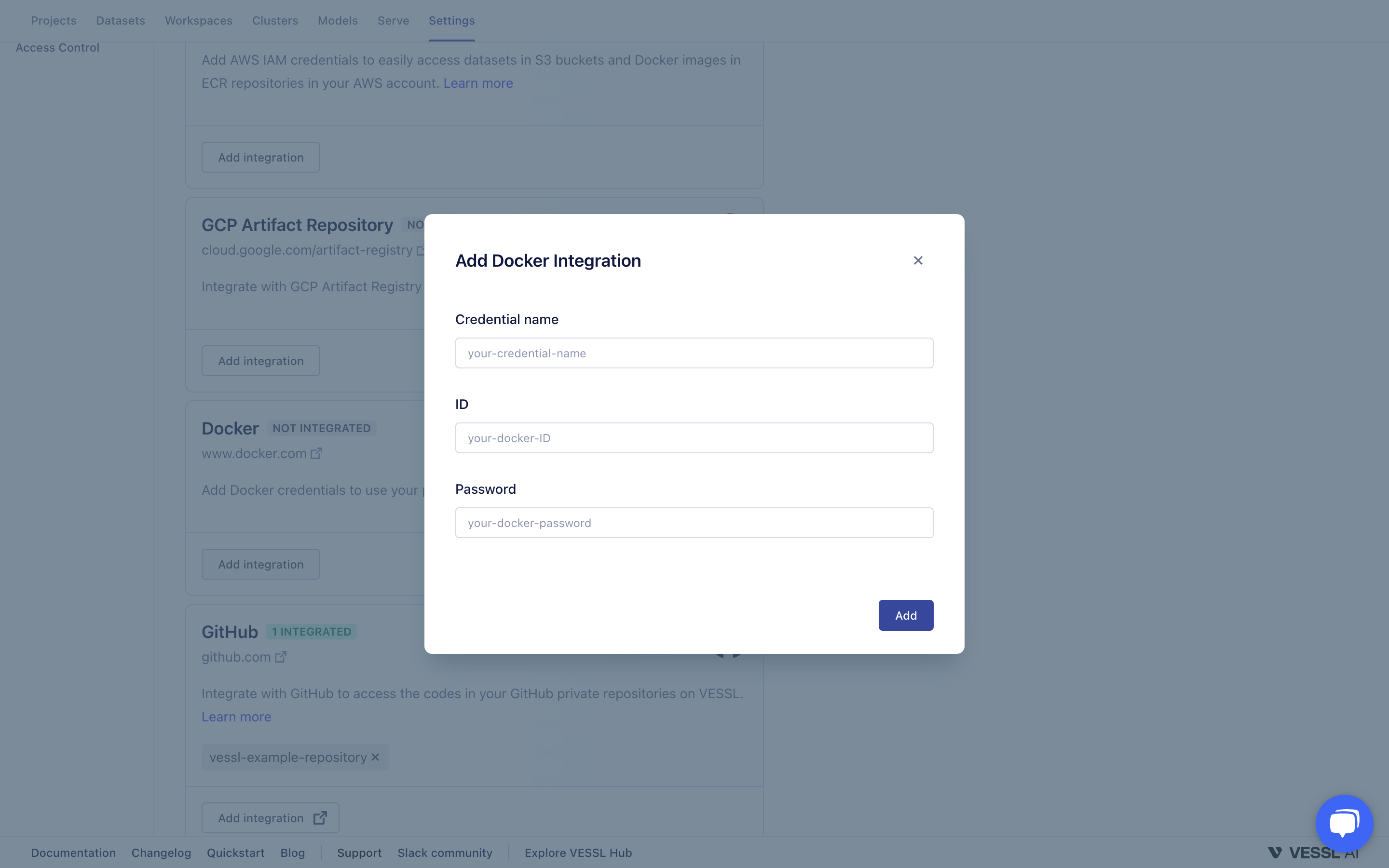
To integrate your Docker account, click **Add integration** and fill in your Docker credentials.
### Docker credentials
To integrate your Docker account, click **Add integration** and fill in your Docker credentials.
 ### GitHub
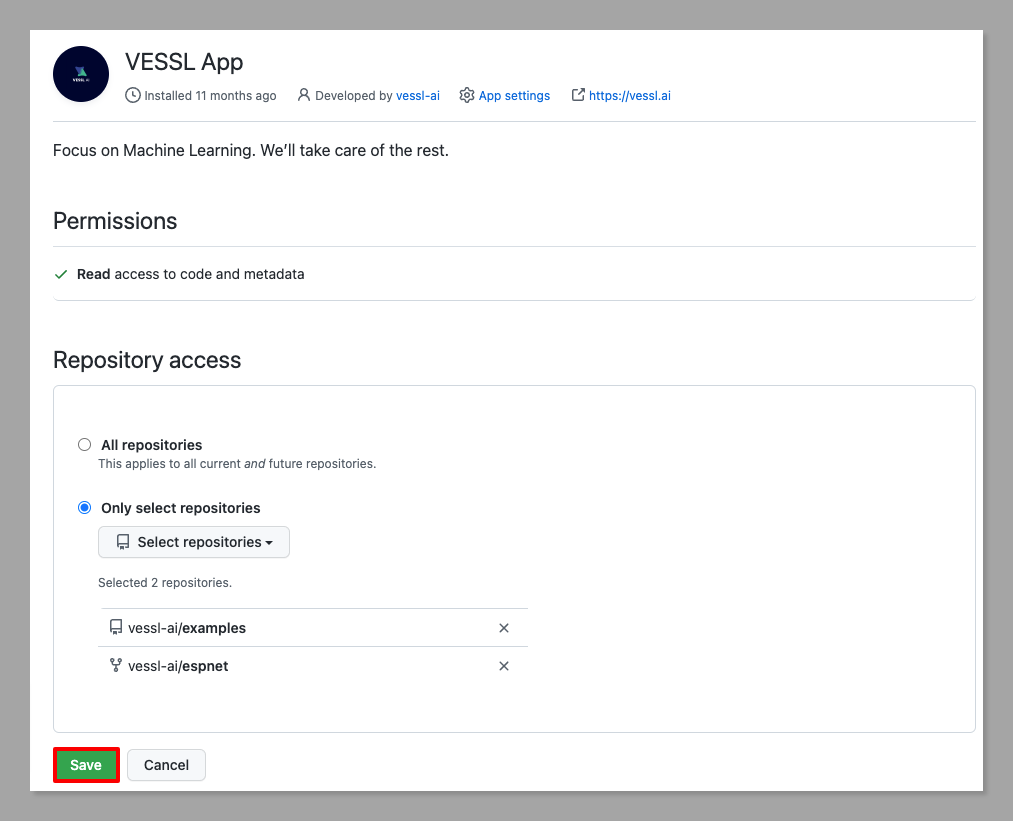
To integrate your GitHub account, click **Add integration**. Grant repository access to the VESSL app in the repository access section and click save in GitHub.
### GitHub
To integrate your GitHub account, click **Add integration**. Grant repository access to the VESSL app in the repository access section and click save in GitHub.