> ## Documentation Index
> Fetch the complete documentation index at: https://docs.vessl.ai/llms.txt
> Use this file to discover all available pages before exploring further.
# Track runs with vessl.log()
> Use VESSL Python SDK to log and track runs
This example deploys a Jupyter Notebook server. You will also learn how you can connect to the server on VS Code or an IDE of your choice.
Try out the Quickstart example with a single click on VESSL Hub.
See the completed YAML file and final code for this example.
## What you will do
* Use `vessl.log()` to log model's key metrics to VESSL during training
* Define a YAML for batch experiments
* Use Run Dashboard to track, visualize, and review experiments
## Using our Python SDK
You can log metrics like accuracy and loss during each epoch with `vessl.log()`.
For example, the [main.py](https://github.com/vessl-ai/examples/blob/main/runs/tracking/main.py) example below calculates the `accuracy` and `loss` at each `epoch` which we receive as environment variables and logs them to VESSL.
```python theme={null}
import os
import random
import vessl
epochs = int(os.environ['epochs'])
lr = float(os.environ['lr'])
offset = random.random() / 5
for epoch in range(2, epochs):
acc = 1 - 2**-epoch - random.random() / epoch - offset
loss = 2**-epoch + random.random() / epoch + offset
print(f"epoch={epoch}, accuracy={acc}, loss={loss}")
vessl.log({"accuracy": acc, "loss": loss})
```
You can review the results under Plots.
 You can also use `vessl.log()` with our YAML to (1) launch multiple jobs with different hyperparameters, (2) track the results in realtime, and (3) set up a shared experiment dashboard for your team.
## Using the YAML
Here, we have a simple `log_epoch-10_lr-0.01.yaml` file that runs the `main.py` file above on a CPU instance. Refer to [our get started guide](https://docs.vessl.ai/guides/get-started/overview) to learn how you can launch a training job.
```yaml theme={null}
name: tracking-1
description: "Logging custom metrics with VESSL SDK"
resources:
cluster: vessl-aws-seoul
preset: cpu-small
image: quay.io/vessl-ai/python:3.10-r18
import:
/root/examples/: git://github.com/vessl-ai/examples
run:
- command: python main.py
workdir: /root/examples/runs/tracking
```
You can quickly change these values on YAML and run batch jobs with different hyperparameters.
```yaml theme={null}
vessl run create -f log_epoch-10_lr-0.01.yaml
vessl run create -f log_epoch-10_lr-0.001.yaml
vessl run create -f log_epoch-10_lr-0.0001.yaml
```
You can also use `vessl.log()` with our YAML to (1) launch multiple jobs with different hyperparameters, (2) track the results in realtime, and (3) set up a shared experiment dashboard for your team.
## Using the YAML
Here, we have a simple `log_epoch-10_lr-0.01.yaml` file that runs the `main.py` file above on a CPU instance. Refer to [our get started guide](https://docs.vessl.ai/guides/get-started/overview) to learn how you can launch a training job.
```yaml theme={null}
name: tracking-1
description: "Logging custom metrics with VESSL SDK"
resources:
cluster: vessl-aws-seoul
preset: cpu-small
image: quay.io/vessl-ai/python:3.10-r18
import:
/root/examples/: git://github.com/vessl-ai/examples
run:
- command: python main.py
workdir: /root/examples/runs/tracking
```
You can quickly change these values on YAML and run batch jobs with different hyperparameters.
```yaml theme={null}
vessl run create -f log_epoch-10_lr-0.01.yaml
vessl run create -f log_epoch-10_lr-0.001.yaml
vessl run create -f log_epoch-10_lr-0.0001.yaml
```
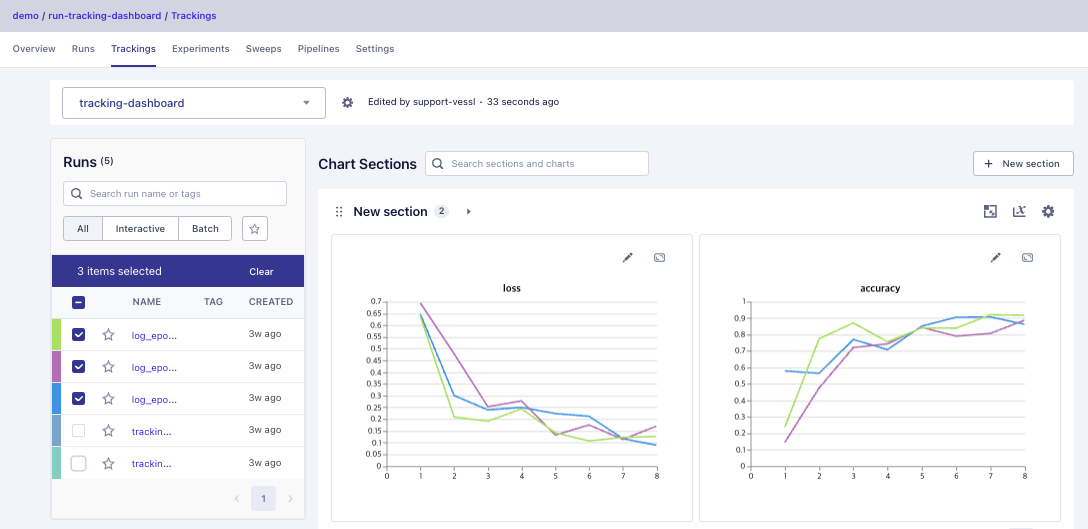 This comes handy when you want to experiment with different hyperparameters using a committed code, and attaching a git hash to the YAML essentially versions your model as you fine-tune them.
## Setting up a shared dashboard
Under Trackings, you can set up a shared dashboard of your experiments.
## Using our web interface
You can tweak your parameters on our web once you defined your parameters as environment variables.
## What's next?
Train nanoGPT from scratch and track its performance as you experiment with different hyperparameters.
This comes handy when you want to experiment with different hyperparameters using a committed code, and attaching a git hash to the YAML essentially versions your model as you fine-tune them.
## Setting up a shared dashboard
Under Trackings, you can set up a shared dashboard of your experiments.
## Using our web interface
You can tweak your parameters on our web once you defined your parameters as environment variables.
## What's next?
Train nanoGPT from scratch and track its performance as you experiment with different hyperparameters.