> ## Documentation Index
> Fetch the complete documentation index at: https://docs.vessl.ai/llms.txt
> Use this file to discover all available pages before exploring further.
# Create a Slack Summarizer Bot with VESSL Service
> Use VESSL Service to create a Slack Summarizer Bot with Open-Source Llama 3
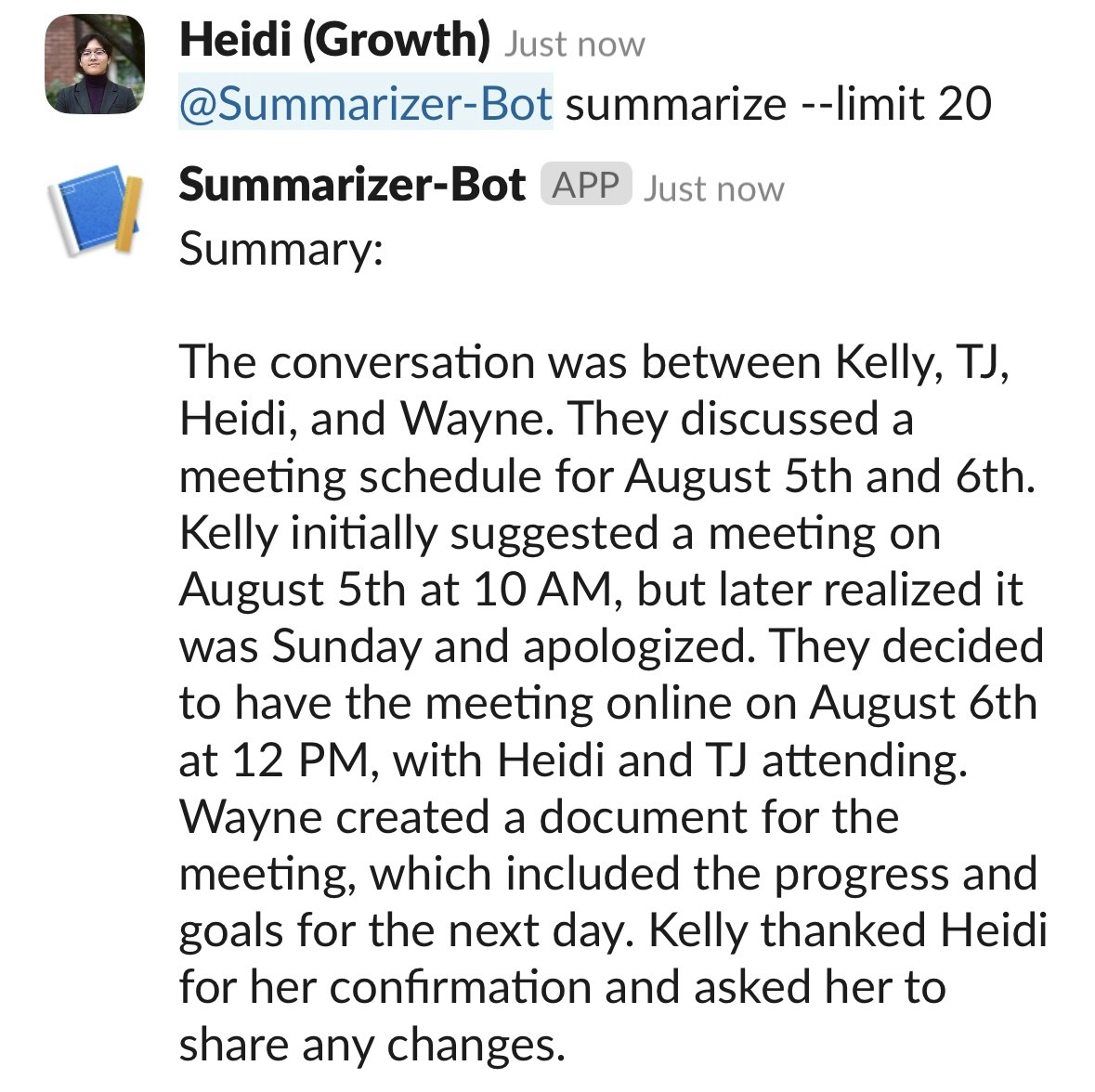
This example is a step-by-step walkthrough of how to create a bot that summarizes Slack threads using the open-source Llama 3 model, all on VESSL Service.
See the completed YAML files and final code for this example.
## Setting Up The App
Open [api.slack.com](https://api.slack.com/), and navigate to the `Your Apps` tab on the top right corner. Create a new app from scratch called **"Summarizer"** in your designated workspace.
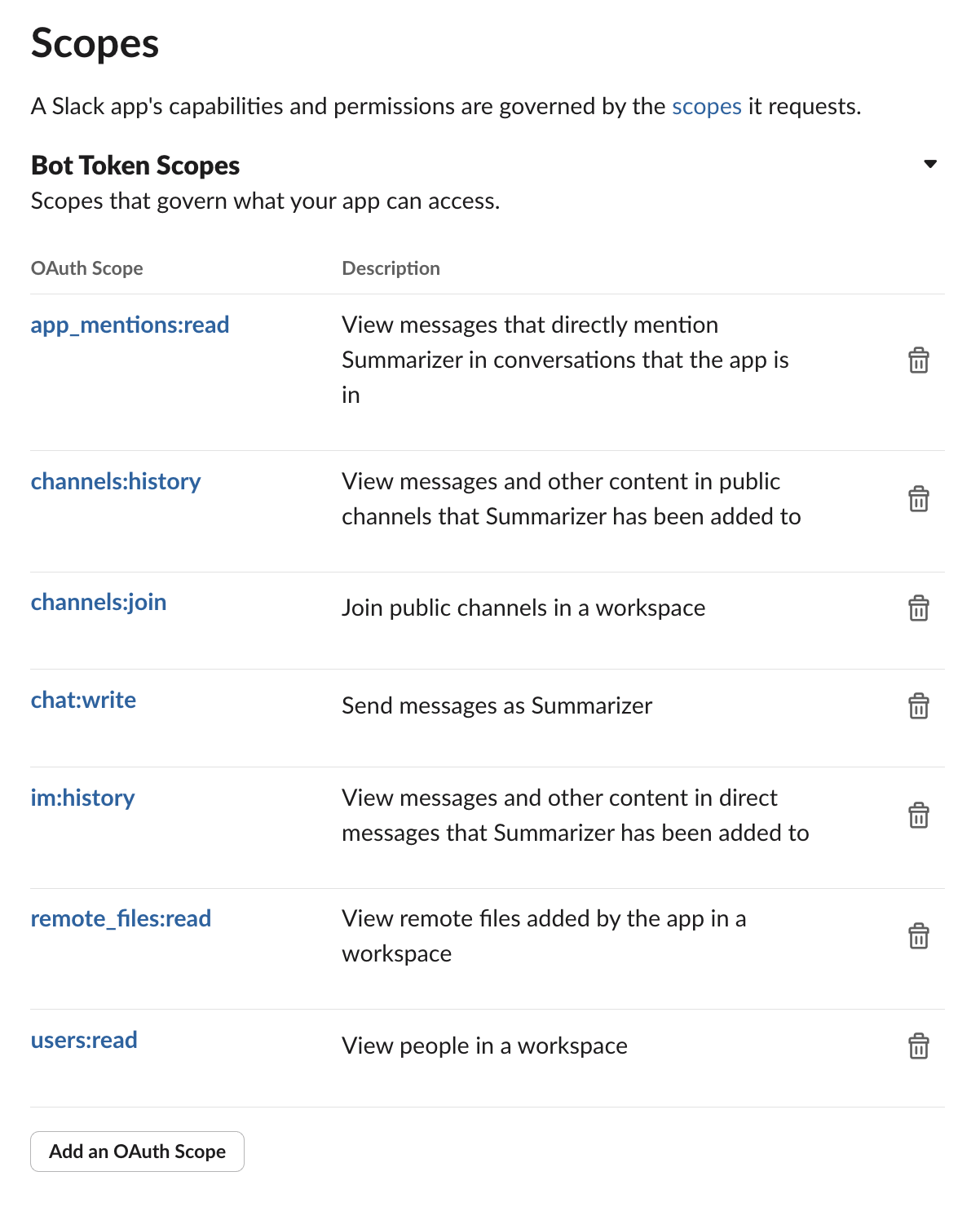
Under the `OAuth & Permissions` tab, scroll down to `Scopes` and configure the necessary scopes (such as **app\_mentions:read**, **channels:history**, **channels:join**, **chat:write**, **im:history**, **remote\_files:read**, **users:read**) and click `Install to Workspace`.
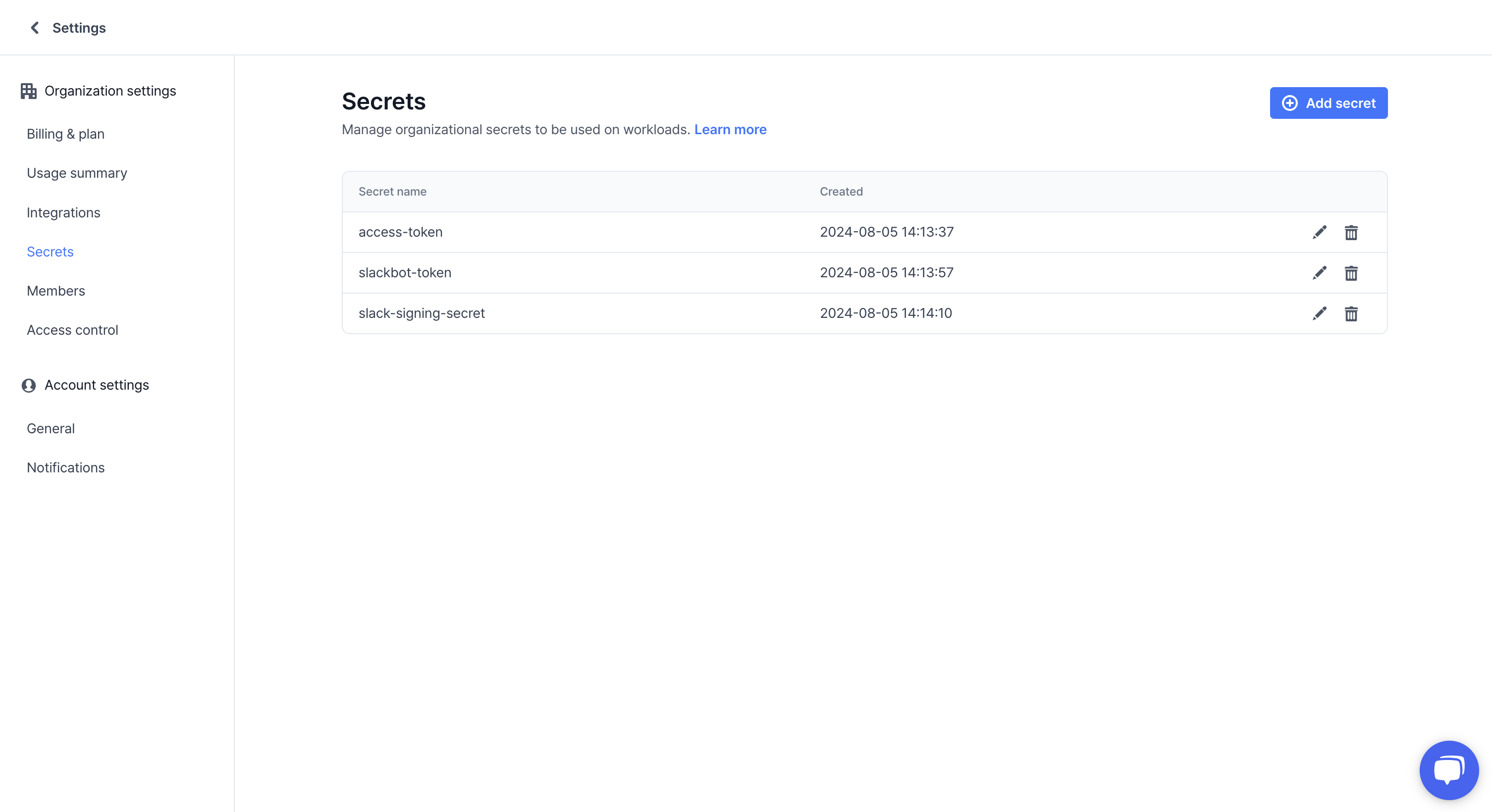
 Take the `Bot User OAuth Token` under `OAuth & Permissions` and the `Signing Secret` under `Basic Information > App Credentials` and save them somehwere secure, like the designated VESSL interface `Settings > Secrets`.
 ## Deploying Llama 3 Using VESSL Service
We will now deploy a Llama 3 server with VESSL Service.
1. Clone [this GitHub repository](https://github.com/vessl-ai/examples). We will be using the `llm-summarizer-slackbot` example.
```bash theme={null}
git clone https://github.com/vessl-ai/examples.git
```
2. Make sure VESSL is installed and configured.
```bash theme={null}
pip install vessl
vessl configure
```
3. Deploy the server using the provided `serve-llama.yaml` configuration and VESSL CLI using the following command.
```bash theme={null}
cd examples/llm-summarizer-slackbot
vessl serve create -f serve-llama.yaml --set-current-active
```
Once the service is running, the service will appear in VESSL `Service` tab, and you an now access the model through the provided endpoint.
## Deploying Llama 3 Using VESSL Service
We will now deploy a Llama 3 server with VESSL Service.
1. Clone [this GitHub repository](https://github.com/vessl-ai/examples). We will be using the `llm-summarizer-slackbot` example.
```bash theme={null}
git clone https://github.com/vessl-ai/examples.git
```
2. Make sure VESSL is installed and configured.
```bash theme={null}
pip install vessl
vessl configure
```
3. Deploy the server using the provided `serve-llama.yaml` configuration and VESSL CLI using the following command.
```bash theme={null}
cd examples/llm-summarizer-slackbot
vessl serve create -f serve-llama.yaml --set-current-active
```
Once the service is running, the service will appear in VESSL `Service` tab, and you an now access the model through the provided endpoint.
 ## Serving the App
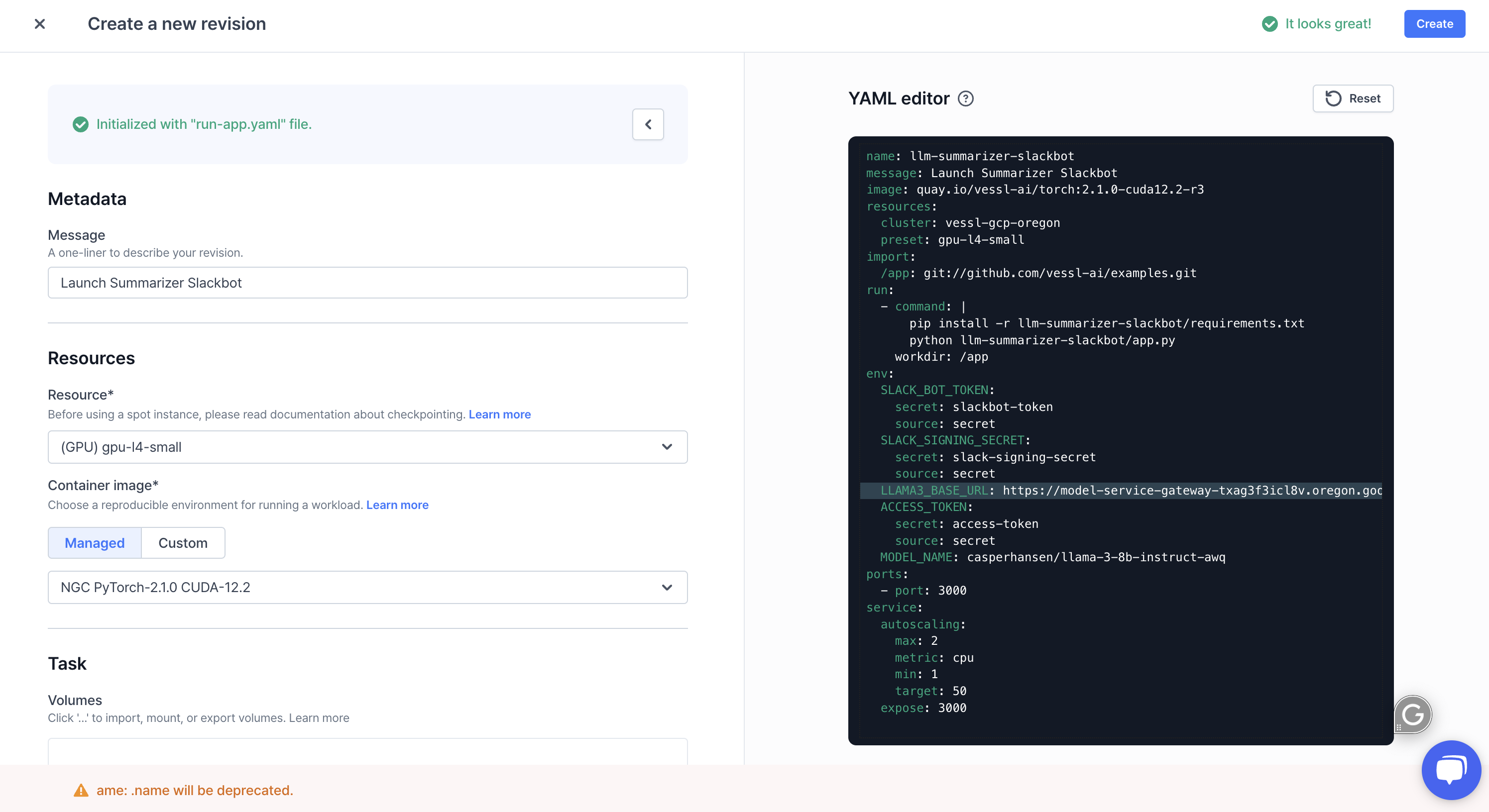
To serve the app itself, create a `New Service` in `Service`. Then, navigate to the `Revisions` tab within the service and press `New Revision`.
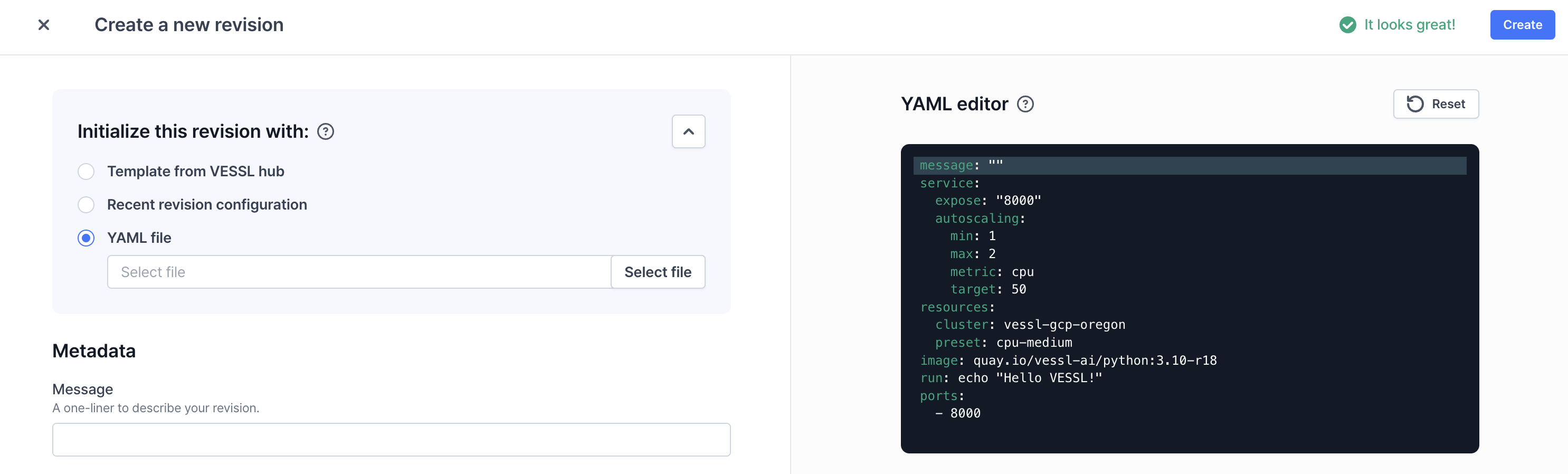
1. Initialize the revision with the `run-app.yaml` from the cloned repository. You will see the exact file on the right. You can now directly edit the YAML file with the editor or edit with the UI.
## Serving the App
To serve the app itself, create a `New Service` in `Service`. Then, navigate to the `Revisions` tab within the service and press `New Revision`.
1. Initialize the revision with the `run-app.yaml` from the cloned repository. You will see the exact file on the right. You can now directly edit the YAML file with the editor or edit with the UI.
 2. Make sure that your secrets are properly configured (`access-token`, `slackbot-token`, and `slack-signing-secret`).
3. Paste in the endpoint produced by the Llama server in `LLAMA3_BASE_URL` and press `Create`.
2. Make sure that your secrets are properly configured (`access-token`, `slackbot-token`, and `slack-signing-secret`).
3. Paste in the endpoint produced by the Llama server in `LLAMA3_BASE_URL` and press `Create`.
 4. Once the revision is running, the app server will produce an endpoint that you can enter into the `Slack Request URL` under `Event Subscriptions`.

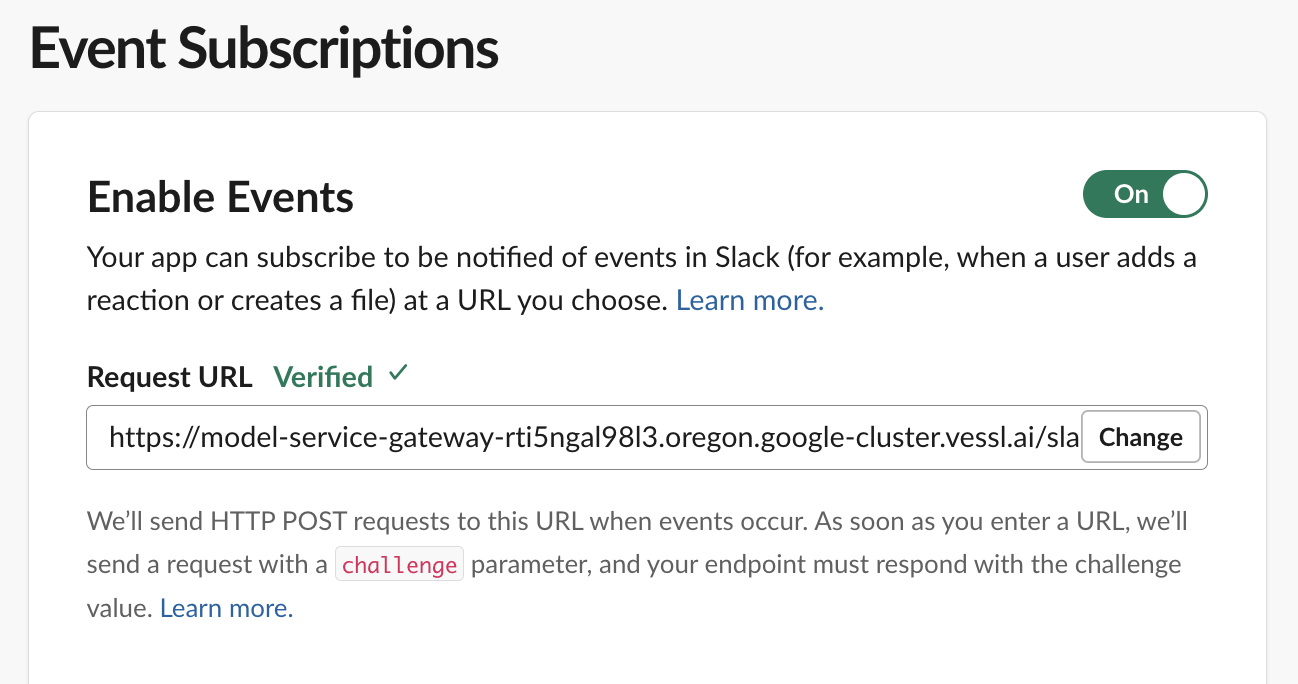 **Remember to add '/slack/events' at the end of the endpoint when entering the Request URL for the app to properly respond to Slack events**
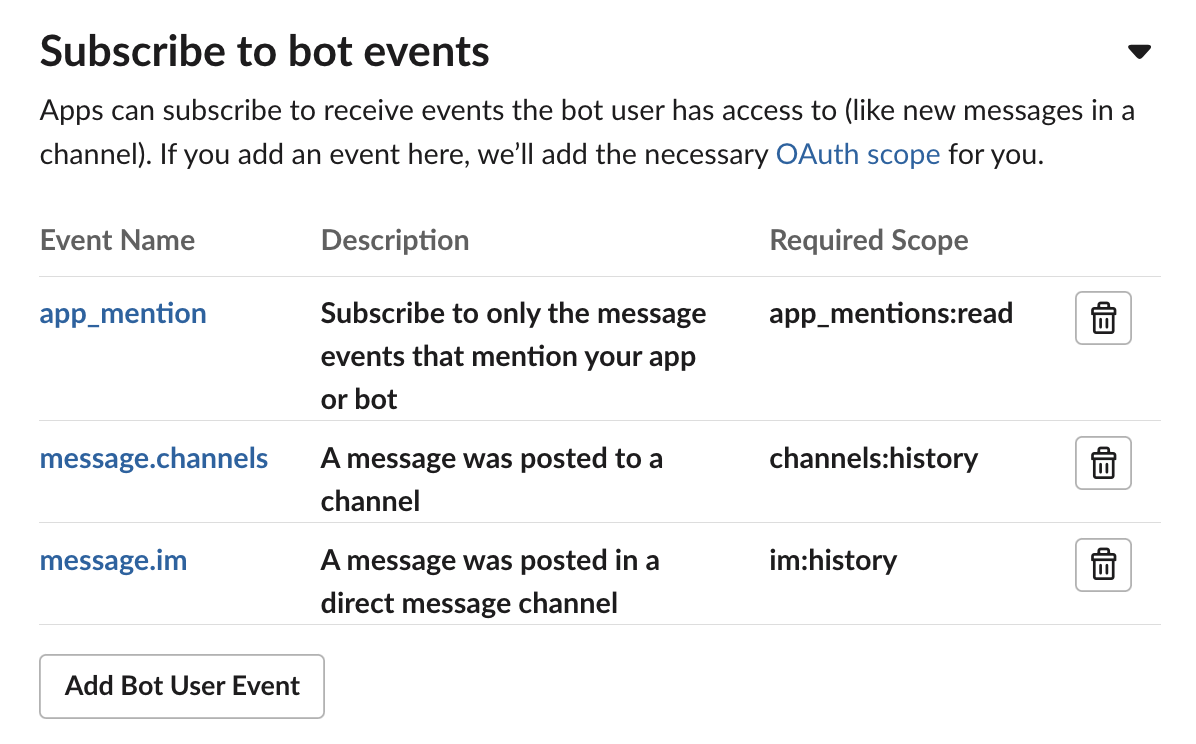
5. Subscribe to bot events (such as **app\_mention**, **message.channels**, **message.im**) in `Event Subscriptions` and save the changes.
**Remember to add '/slack/events' at the end of the endpoint when entering the Request URL for the app to properly respond to Slack events**
5. Subscribe to bot events (such as **app\_mention**, **message.channels**, **message.im**) in `Event Subscriptions` and save the changes.
 The app is now good to go. Mention the bot in a thread and ask it a question or use the `summarize` command for a summary, `--limit` to specify the number of messages (default: 10), `--help` for instructions, and `--version` to check the app version.