> ## Documentation Index
> Fetch the complete documentation index at: https://docs.vessl.ai/llms.txt
> Use this file to discover all available pages before exploring further.
# Backup & Restore data with Artifacts
> VESSL Run with VESSL Artifact
# Backup and restore data with VESSL Artifact
VESSL Artifact provides a manged storage solution to backup and restore data seamlessly during your runs. By setting up the `export` and `import` options in your YAML configuration or through the Web Console, you can easily save and retrieve volumes. This guide covers how to use these features for data persistence.
## Backing Up Data
When you initiate a run, you can specify volumes to be exported and saved into VESSL Artifact for later use.
### Using YAML
In your YAML configuration, add the `export` keyword and specify the target volume and artifact name as shown below:
```yaml theme={null}
export:
/target/path/: vessl-artifact://{organizationName}/{projectName}/{artifactName}
```
Here, `/target/path/` is the path of the volume in your run container that you wish to export, and `{artifactName}` is the name you want to give to the saved artifact.
### Using Web Console
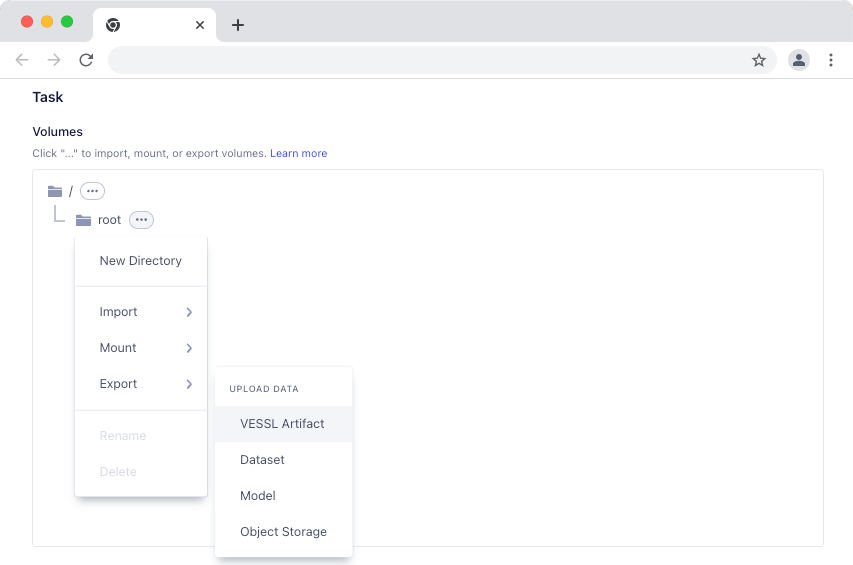
Navigate to the `Project > Runs` section in the VESSL Web Console. Locate the `Volumes` section and click `Export > VESSL Artifact` at the target path.
 Click `Backup Volume` option and specify the `Artifact Name`.
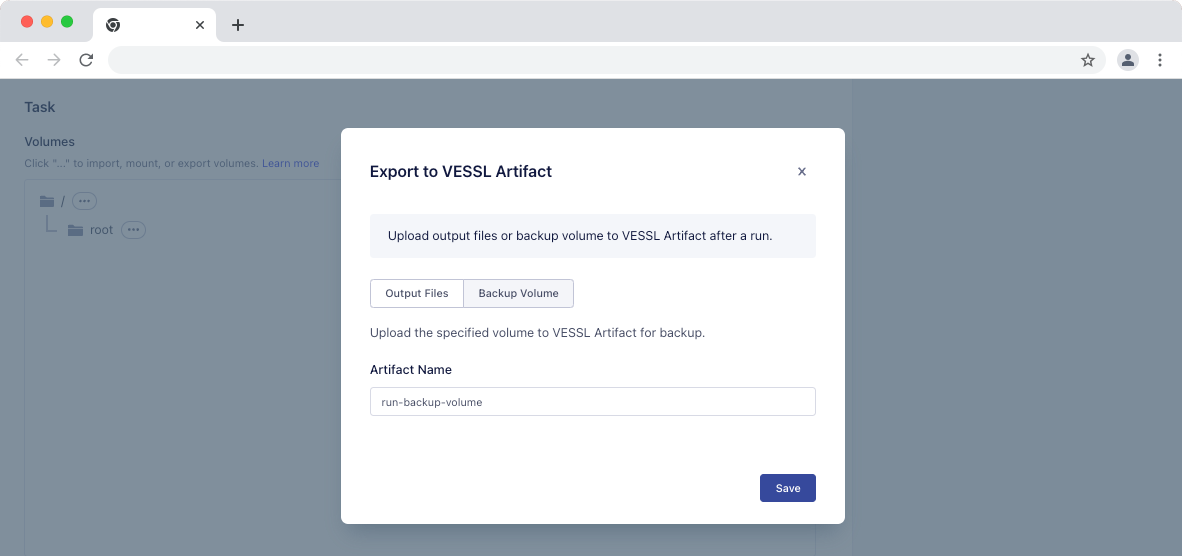 Once the run is executed, the specified volume will be exported and saved into VESSL Artifact with the given artifact name after run.
## Restoring Data
To use the saved data in another run, you can specify the artifact to be imported.
### Using YAML
In your YAML configuration for the new run, use the `import` keyword as shown:
```yaml theme={null}
import:
/target/path/: vessl-artifact://{organizationName}/{projectName}/{artifactName}
```
`/target/path/` is the path of the volume in your run container that you wish to import, and `{artifactName}` is the name you have saved before.
### Using Web Console
Navigate to the `Project > Runs"` section in the VESSL Web Console. Locate the `Volumes` section when creating or editing a run.
Once the run is executed, the specified volume will be exported and saved into VESSL Artifact with the given artifact name after run.
## Restoring Data
To use the saved data in another run, you can specify the artifact to be imported.
### Using YAML
In your YAML configuration for the new run, use the `import` keyword as shown:
```yaml theme={null}
import:
/target/path/: vessl-artifact://{organizationName}/{projectName}/{artifactName}
```
`/target/path/` is the path of the volume in your run container that you wish to import, and `{artifactName}` is the name you have saved before.
### Using Web Console
Navigate to the `Project > Runs"` section in the VESSL Web Console. Locate the `Volumes` section when creating or editing a run.
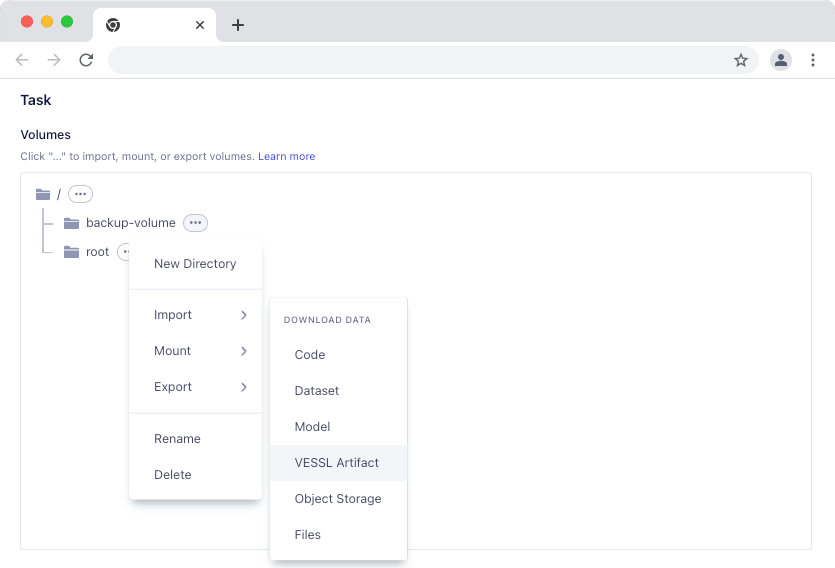 Once the new run is executed, the specified volume will be populated with the data from the imported artifact.
## What's Next
For more detailed YAML reference and definitions, please visit:
A complete descriptions of YAML references.
A complete list of YAML definitions.
Once the new run is executed, the specified volume will be populated with the data from the imported artifact.
## What's Next
For more detailed YAML reference and definitions, please visit:
A complete descriptions of YAML references.
A complete list of YAML definitions.